
Cómo quitar texto de un video en Canva
Based on linked official documentation · Updated · Editorial methodology
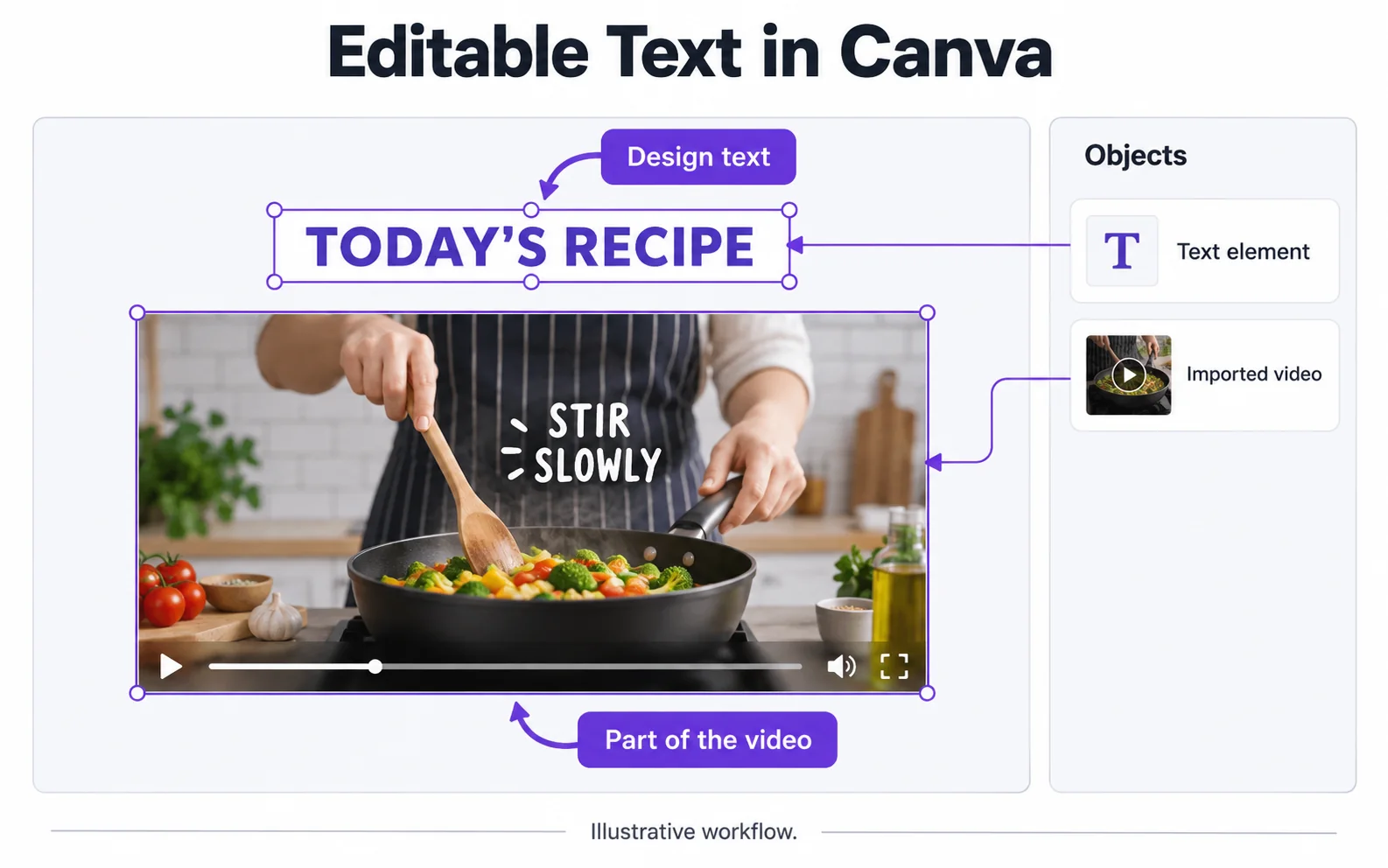
In Canva, words you can select as text boxes are different from lettering visible inside an uploaded video. Check that distinction before deleting anything.
Documentation-based walkthrough · official references checked September 8, 2026 · controls vary by edition and device
If the words are a separate Canva text element, delete that element. Words rendered inside an uploaded video cannot be selected as a text box; prepare a cleaned video copy before returning to the design.
Select the actual text element
Open your design and click the text box you want to remove. If it is an independent element, delete that element and preview the relevant page or video segment. Check for duplicated elements on other pages.
Open the original design
Navigate to the page and video moment containing the text. Avoid using a screenshot of the design as your source.
Select the text element
Click the text box itself and confirm that the selection is the intended text, not the whole uploaded video.
Delete and check other pages
Delete the selected element. Inspect duplicated pages or later video segments where another copy may remain.
Export and reopen the video
Check the output at the affected moments, including transitions between pages.
Check: The exported picture, not just the design canvas, shows the intended change.
When clicking selects the whole video
If the words are part of the uploaded clip, Canva’s text-box editing controls do not turn them into an editable object. Return to the original video project if you have it, or use a video-specific picture-repair workflow.
Quitar texto superpuesto de un videoDo not substitute an image-only workflow
A text eraser designed for a still photo does not establish support for video frames over time. Check the accepted input and export type of any tool before relying on it for a moving clip.
Reimport a checked video copy
If you process a flattened clip elsewhere, download and inspect the result before adding it back to your Canva design. Match its duration and aspect ratio to the original so your layout and timing remain intentional.
Cómo borrar texto de un video
When clicking the words does not select a text box
Identify the object before changing the layout.
The whole video gets selected
Likely cause: The words may be flattened into the uploaded video.
What to do: Return to the original editing project or clean a separate video copy, then reimport it.
Text remains on another page
Likely cause: The design may contain duplicated text elements.
What to do: Check every page or scene included in the final video export.
Replacing the video changes the timing
Likely cause: The cleaned copy may contain a different duration or only an opening segment.
What to do: Compare durations before replacing the source. Use the complete intended scene and verify transitions.
Video original y resultado
Compare the original and result as the video plays.
Questions and answers
Why can I select some words but not others?
Some words are separate design elements; others are rendered into the uploaded video. Only the former behave like editable text boxes.
Does an image text eraser also work on a video?
Not necessarily. Check whether the tool accepts video and exports a video. A successful still-image edit does not verify temporal consistency.
Official references
Software diagrams are illustrations, not version-specific screenshots. Consult these guides for current controls.