
Choose a local video, preview it, confirm the processing range and compare the result. If the words are still editable in a project, remove that text layer before exporting instead.
Choose the method before uploading: delete editable text in the original project, omit separate selectable subtitles, or repair text burned into the picture. Cropping and covering are additional options when changing the composition is acceptable.
Start with the video you actually have
The same visible words can come from very different sources. A file extension alone does not tell you which method will work.
An editable project
You can select a text or caption item independently from the video. Removing that object uses the clean footage underneath.
Follow the editor workflowA subtitle track
Words disappear when subtitle display is disabled. Save the file without the track instead of reconstructing the picture.
Remove a separate trackOnly an exported picture
The words remain in the frames with tracks disabled. Compare cropping, covering and automatic repair against the composition you need.
Compare image-editing methodsChoose and preview your file
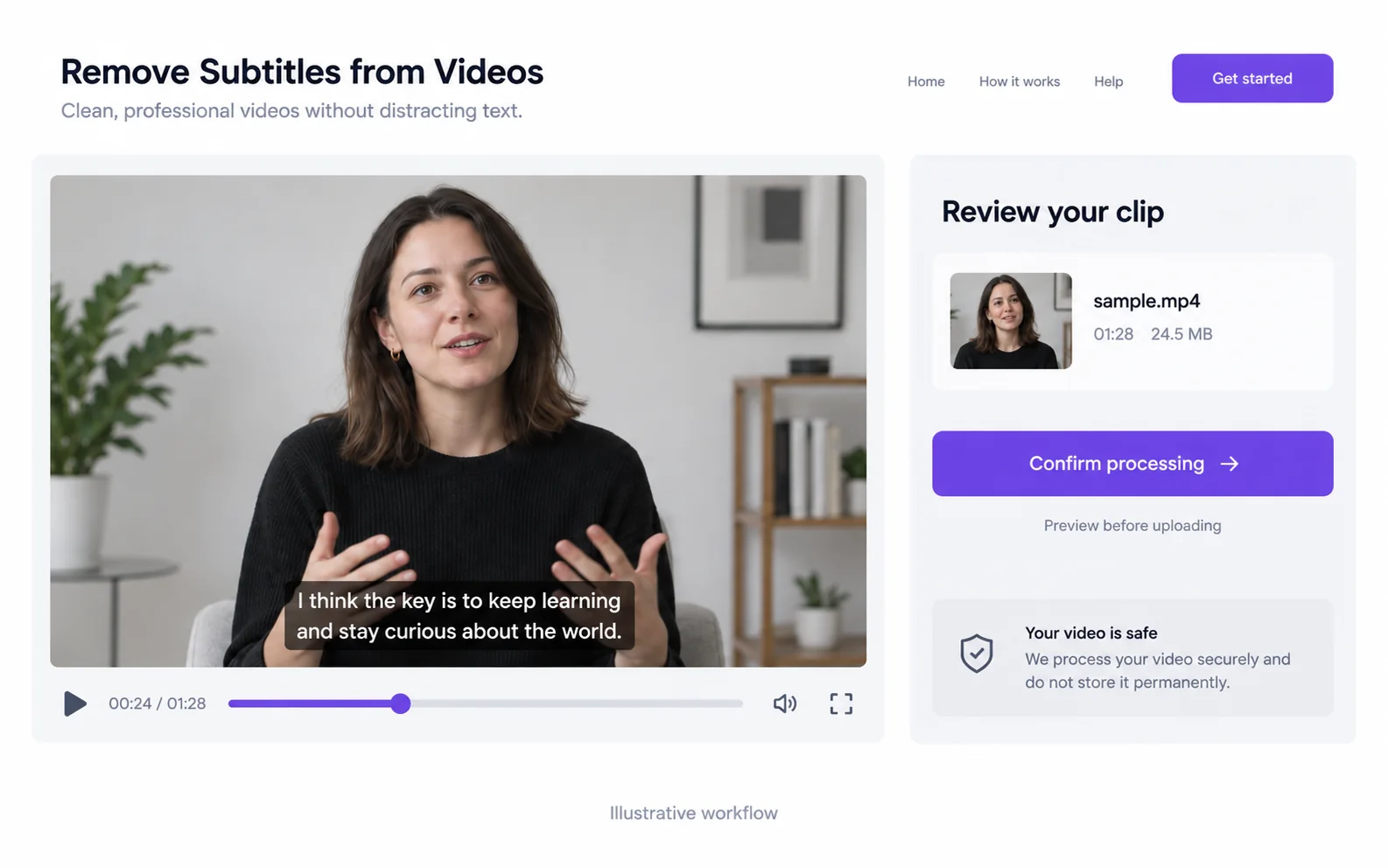
Select MP4, MOV or WebM from your device. The first preview is local; selecting a file does not immediately submit it for AI processing. Check the visible words, the video orientation and the scene you want to process.
Make the source local
Download a cloud-only clip to your device and confirm it opens. Use the file you want to edit, not a screenshot or a platform link.
Prepare the useful scene
Trim elsewhere if your subject appears later in a long recording. Preserve some footage before and after the text changes so you can assess transitions.
Preview the prepared copy
Check orientation, duration and audio before selecting the processing action.
Review the cost and included duration
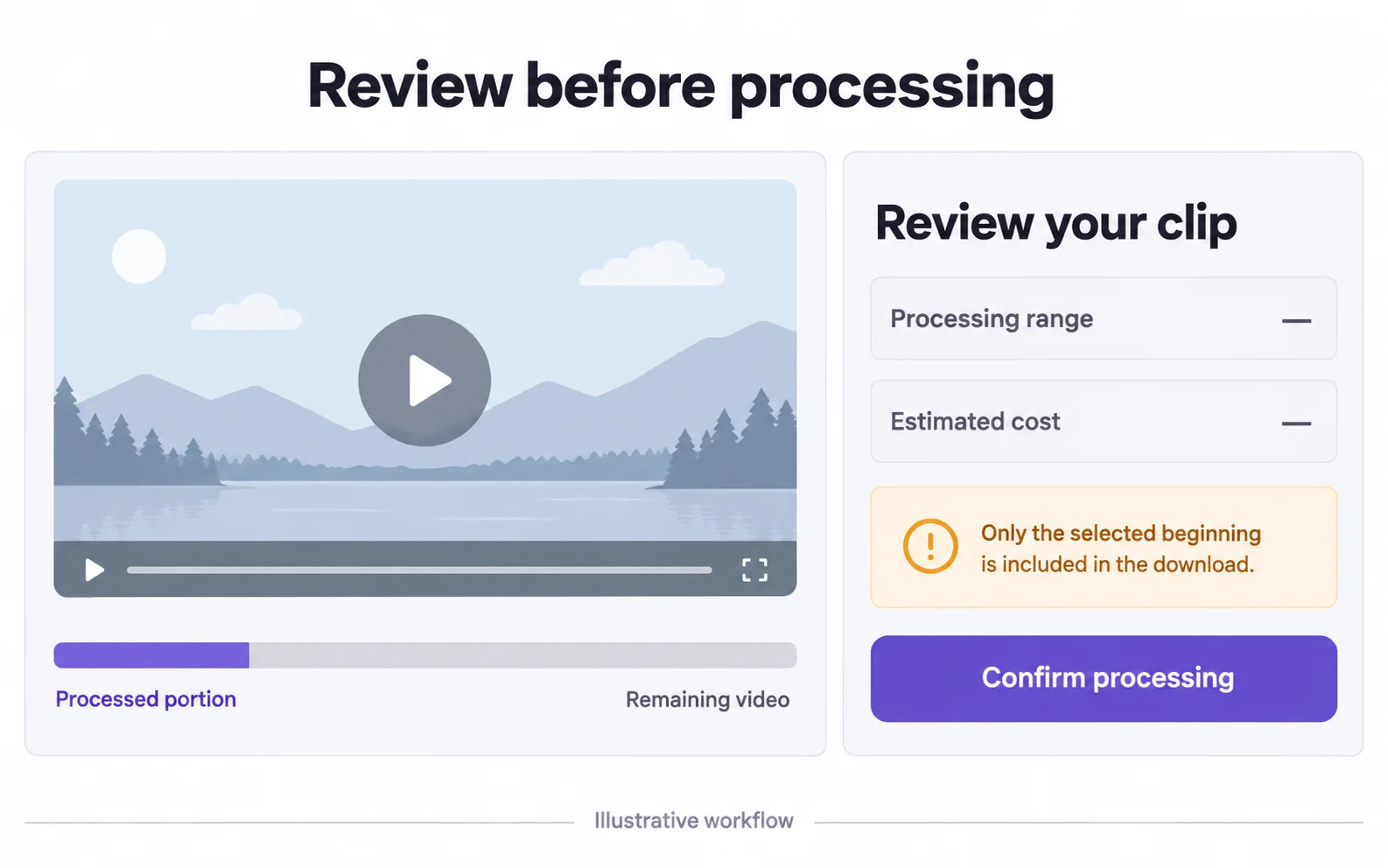
Check the confirmation before starting. Processing uses credits by duration. If the balance is insufficient for the whole clip, only the indicated beginning is processed and included in the result. Use an external editor first if you need a different segment.
| Included video | Créditos |
|---|---|
| 3 seconds | 3 créditos |
| 30 seconds | 30 créditos |
| 60 seconds | 60 créditos |
| 180 seconds | 180 créditos |
One credit per started second, with a three-credit minimum. Your confirmation shows the actual included range. These are usage examples, not plan prices.
Wait for the processing stages
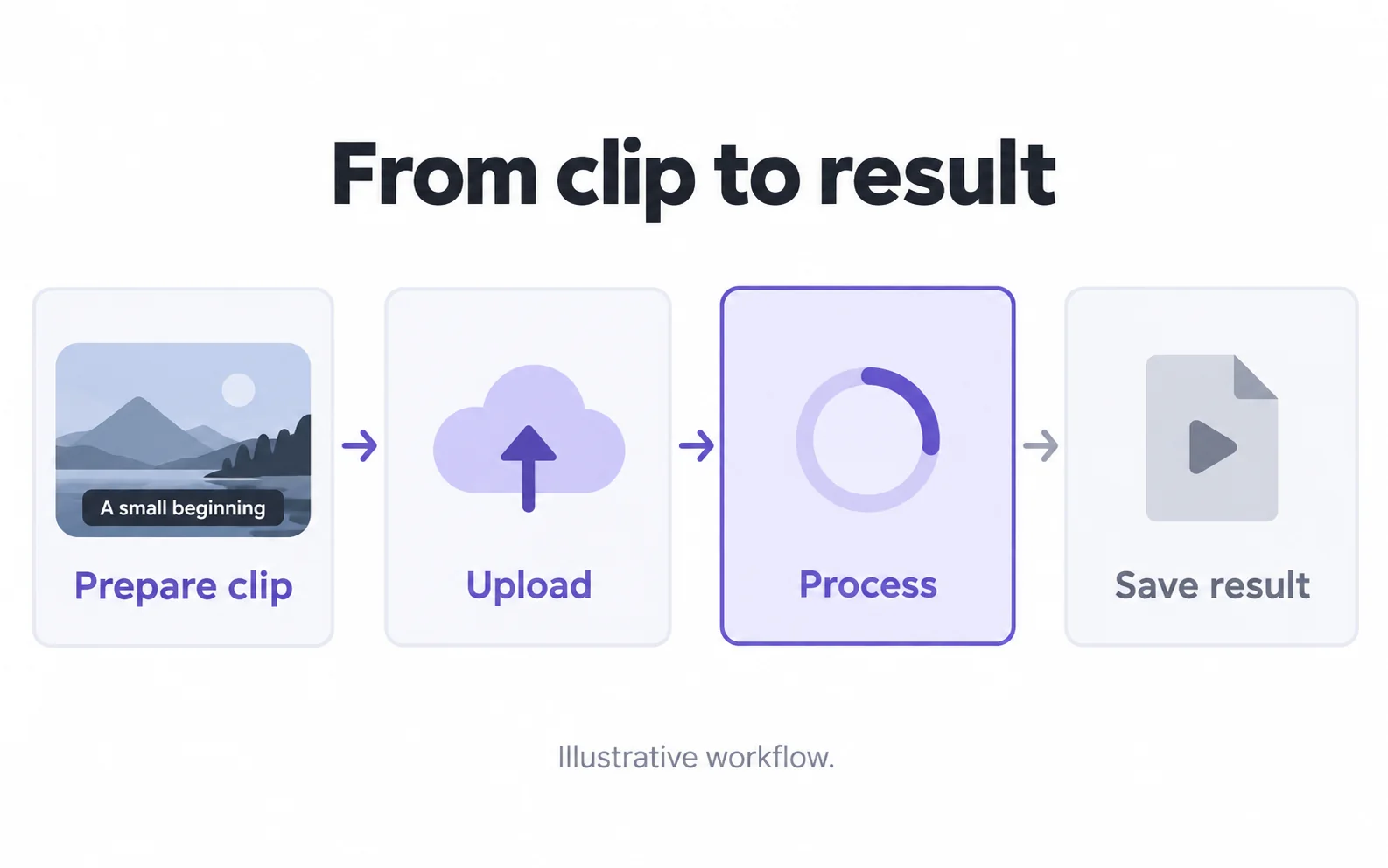
The workflow prepares the clip, uploads it, processes it and makes a result available. Keep the original file. Your task history provides a place to return to jobs and download completed results.
Compare and download
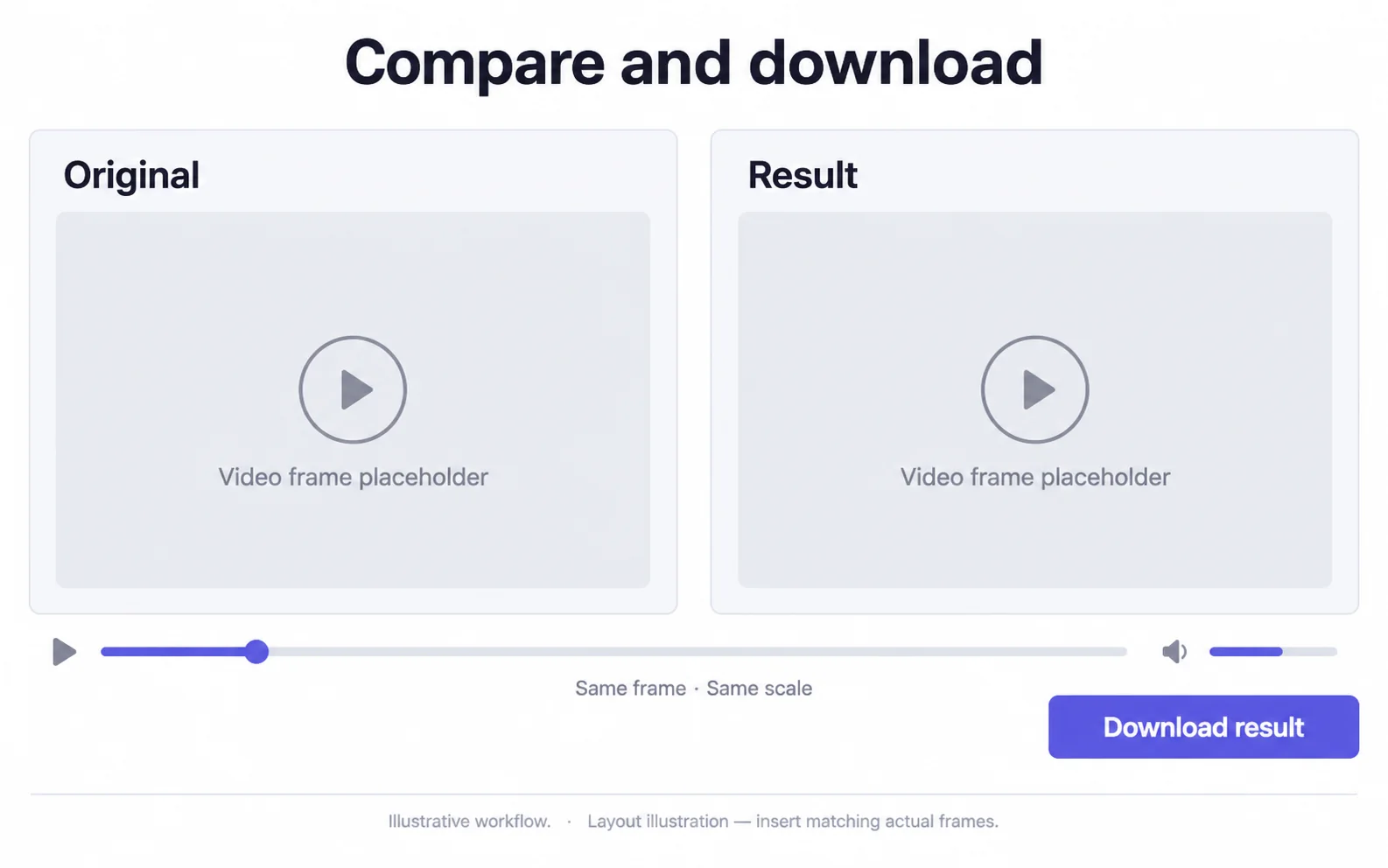
Play original and result at matching times. Inspect text edges, faces, hands and background labels. Download the processed video, then reopen the file to confirm that it contains the range you intended.
A result ready for the next edit
- The downloaded duration matches the intended scene.
- Subtitle edges and nearby subject detail are acceptable in motion.
- Other visible labels that matter still look correct.
- Replacement captions are added in an editor as separate, editable objects.
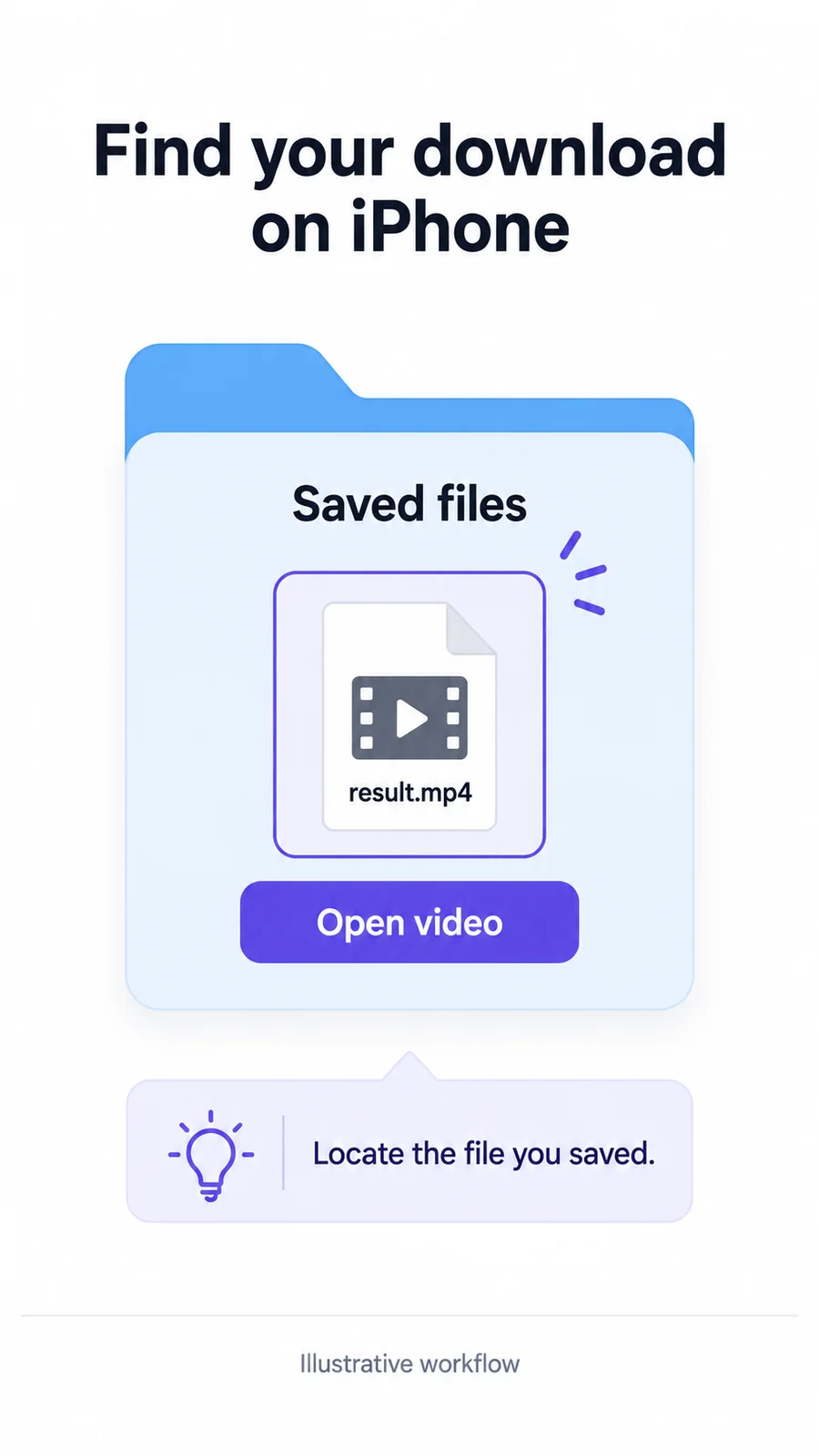
On iPhone: find the saved video
Choose a video available locally, then follow the same preview and confirmation steps. After downloading, use the browser’s download list or Files to find the result. Save or share it to Photos separately if needed.
Questions and answers
Can I remove text if I only have the exported video?
Yes. If the words are part of the exported picture, AI can attempt to repair them. Separate subtitle tracks and editable project layers have different removal methods.
What should I check before downloading the result?
Check the whole processed range, the text-covered area and nearby details. Reopen the downloaded file and make sure you did not expect a full video from an opening-segment task.