
Use your Android browser to choose a local video, preview it and confirm AI processing. The workflow uses the same account and credits as the desktop site.
Android browser workflow · picker labels and download folders depend on the device
Use a local video from device storage, preview it in the browser and confirm processing. Afterward, open the downloaded result from the browser’s downloads or your file manager.
Choose a local video on Android
Open the file picker and choose a supported video from your device storage. If the clip lives only in a cloud library, download it first. Picker labels vary by browser and Android version; the image is a workflow illustration.
Make the video available offline
If it lives in a cloud library, download the original first and play it locally.
Open the browser file picker
Choose the video from device storage. Picker labels vary, so identify it by filename, duration and opening scene.
Confirm the selected version
Check the local preview against the original.
Check: Do not process an older export just because its thumbnail looks similar.
Preview before submitting
Check orientation, duration and the visible subtitle area. Selecting the file creates a local preview. Processing starts only after the account and confirmation steps are complete.
Quitar subtítulos de un MP4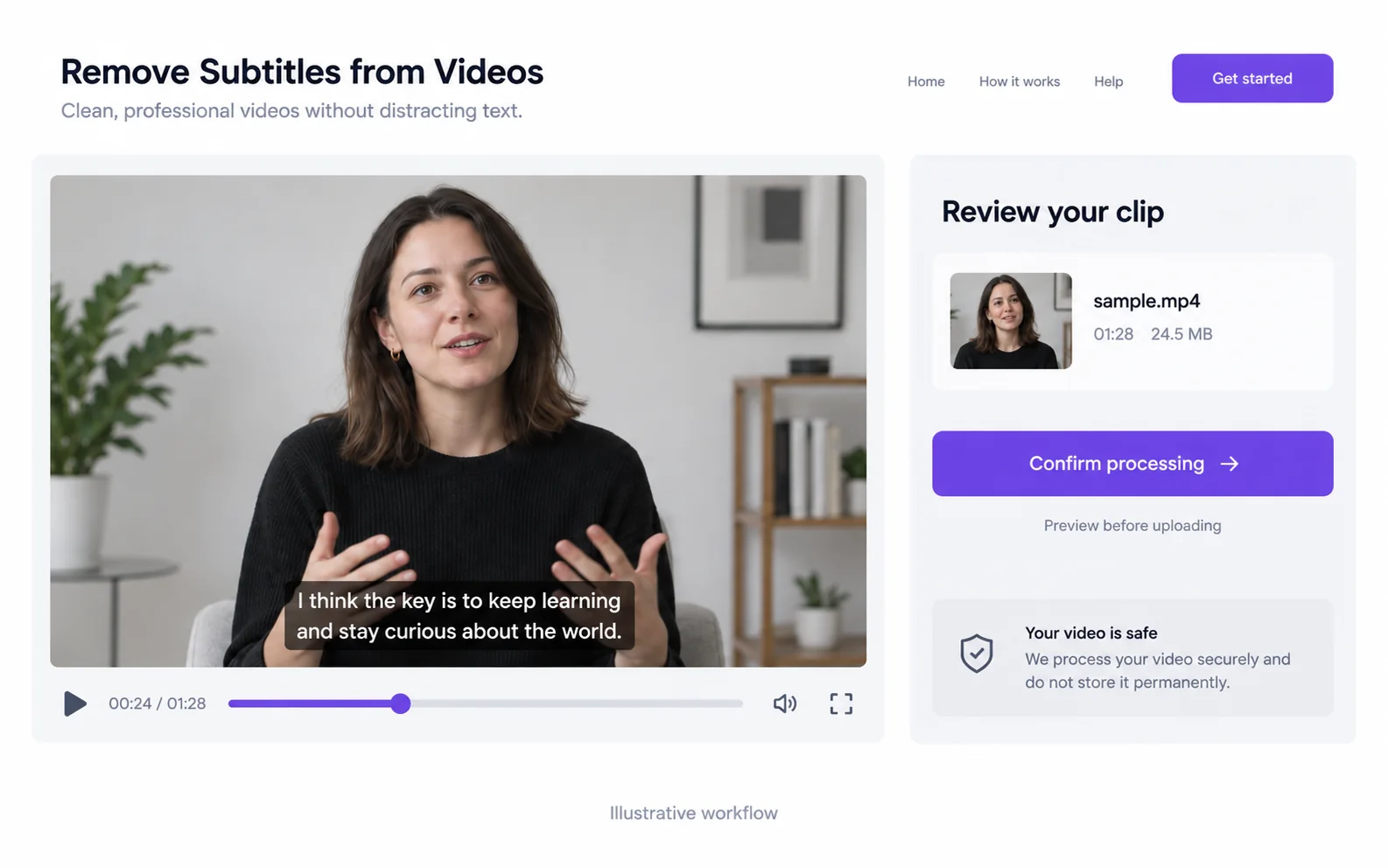
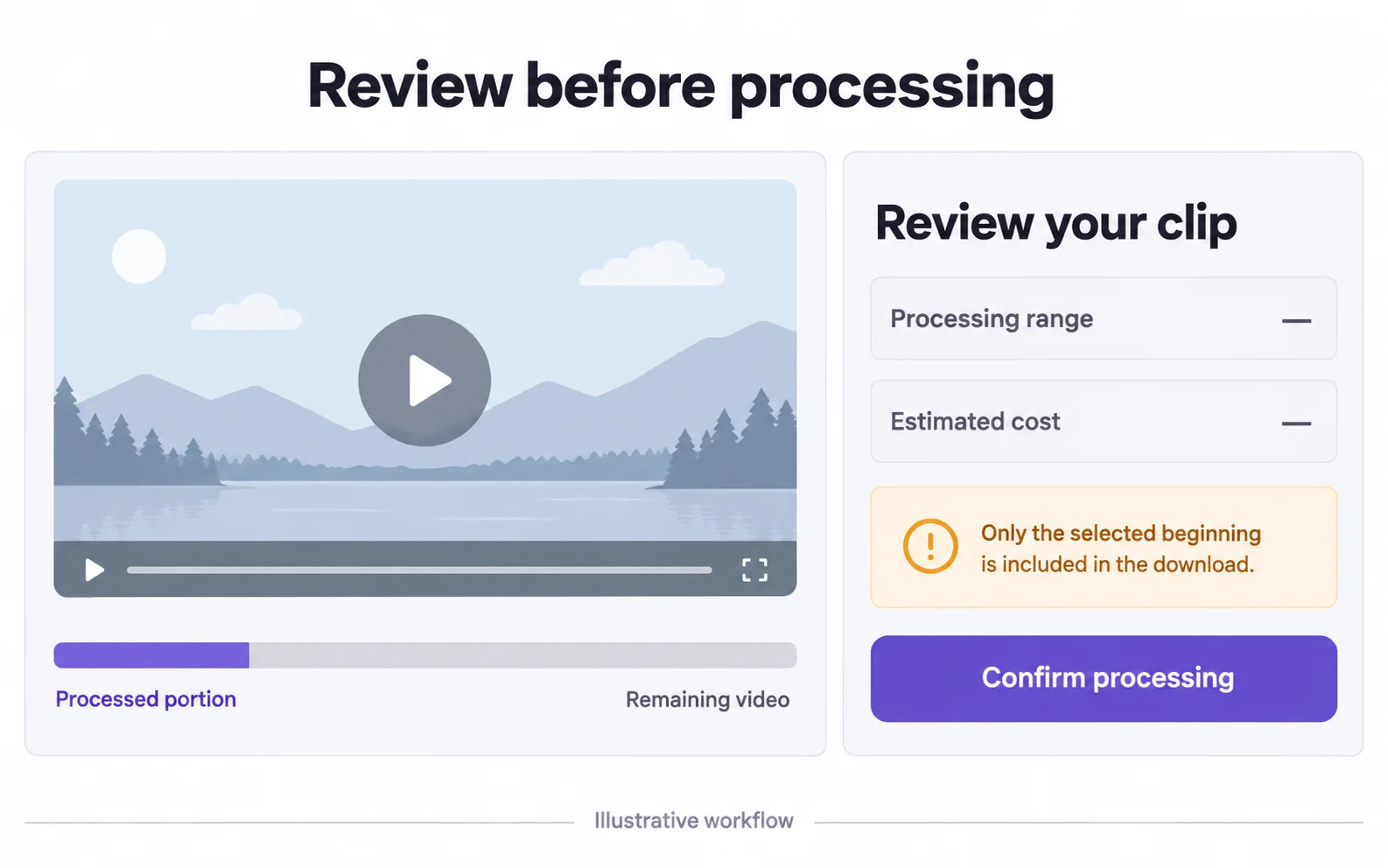
Review the included range
Read the duration and cost before starting. If only the beginning fits your available credits, only that segment is included in the result. Keep the browser available during upload and use task history to return to a completed job.
Find and inspect your download
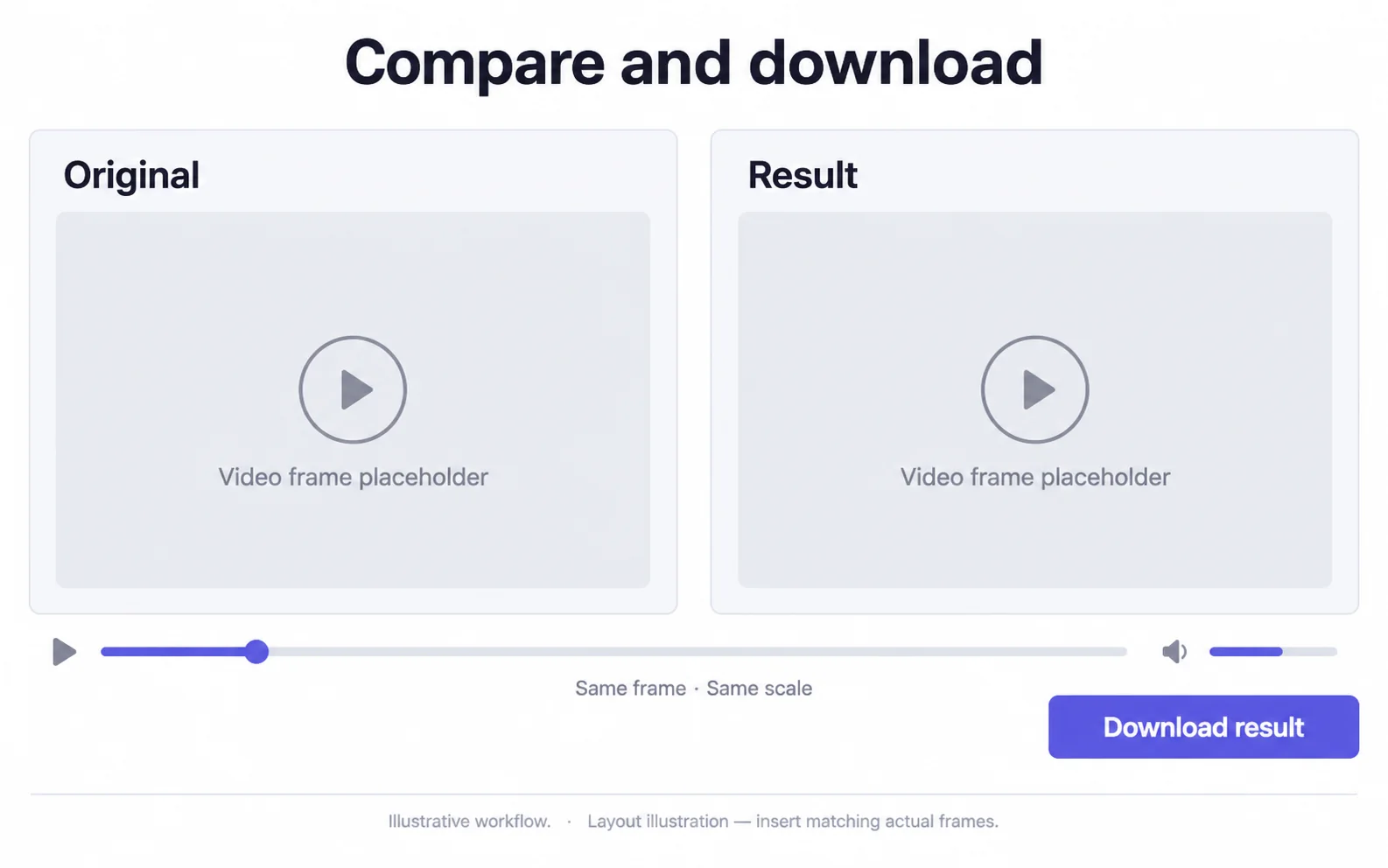
Open the browser download list or your device’s Downloads folder. Play the saved result in a local player and inspect the subtitle area. Share that downloaded file, rather than the original clip from your gallery.
Open the completed task
Use the result download action for the processed video, not the original source.
Find the saved file
Check the browser download list or the Downloads location in your file manager.
Play before sharing
Confirm that the words and included duration match the result you accepted.
Check: Share the downloaded result rather than the old gallery clip.
Recover without starting a duplicate task
Use the existing task and local file to work out what failed.
The browser was closed during upload
Likely cause: The upload may not have completed.
What to do: Return to the task or workspace and inspect its current status before retrying. An accepted task can be found in My Videos.
The downloaded file cannot be found
Likely cause: The file may be in the browser’s configured folder rather than the gallery.
What to do: Open the browser download list and view the file location.
The result is only a short opening
Likely cause: The confirmed processing range may have covered only that opening.
What to do: Compare the download duration with the task details. Prepare and confirm the desired range before a new job.
Questions and answers
Where is the downloaded video saved on Android?
Usually through the browser download list or a Downloads location selected by your browser. The exact folder depends on your device settings.
Will selecting a video upload it immediately?
No. Selection creates a local preview. You review the processing details before the clip is submitted.