
Hapus subtitle dengan HandBrake
Based on linked official documentation · Updated · Editorial methodology
HandBrake can omit separate subtitles during export. Turning off subtitle inclusion or Burn In does not remove lettering that is already part of the source picture.
Documentation-based walkthrough · official references checked September 8, 2026 · controls vary by edition and device
Remove unwanted subtitle selections before exporting in HandBrake. Also inspect Foreign Audio Search and Burn In choices: disabling burn-in cannot erase subtitles already present in the source picture.
Inspect the source in a player
Disable subtitle display and check whether the picture becomes clean. This tells you whether an export without subtitles can solve the problem, or whether the input already contains burned-in words.
Review the Subtitles tab
When preparing the export, inspect selected subtitle tracks, foreign-audio search and burn-in behavior. Remove subtitle selections you do not want in the output. Do not assume a saved preset has the subtitle settings you intend.
Open the source and choose the intended title
Check the duration and preview so you do not encode the wrong title or scene.
Inspect the Subtitles tab
Review every selected subtitle track, including any automatic foreign-audio search entry. Remove the entries you do not want in the output.
Check the final settings after choosing a preset
A preset or changed source can affect subtitle selections. Revisit the Subtitles tab immediately before starting the encode.
Export to a new file
Encode a short representative section first when working with a long source, then inspect its subtitle behavior outside HandBrake.
Understand the Burn In option
Burning subtitles renders them into video frames. Disabling that option prevents a selected track from being newly burned in; it cannot reverse subtitles previously rendered into the input video.
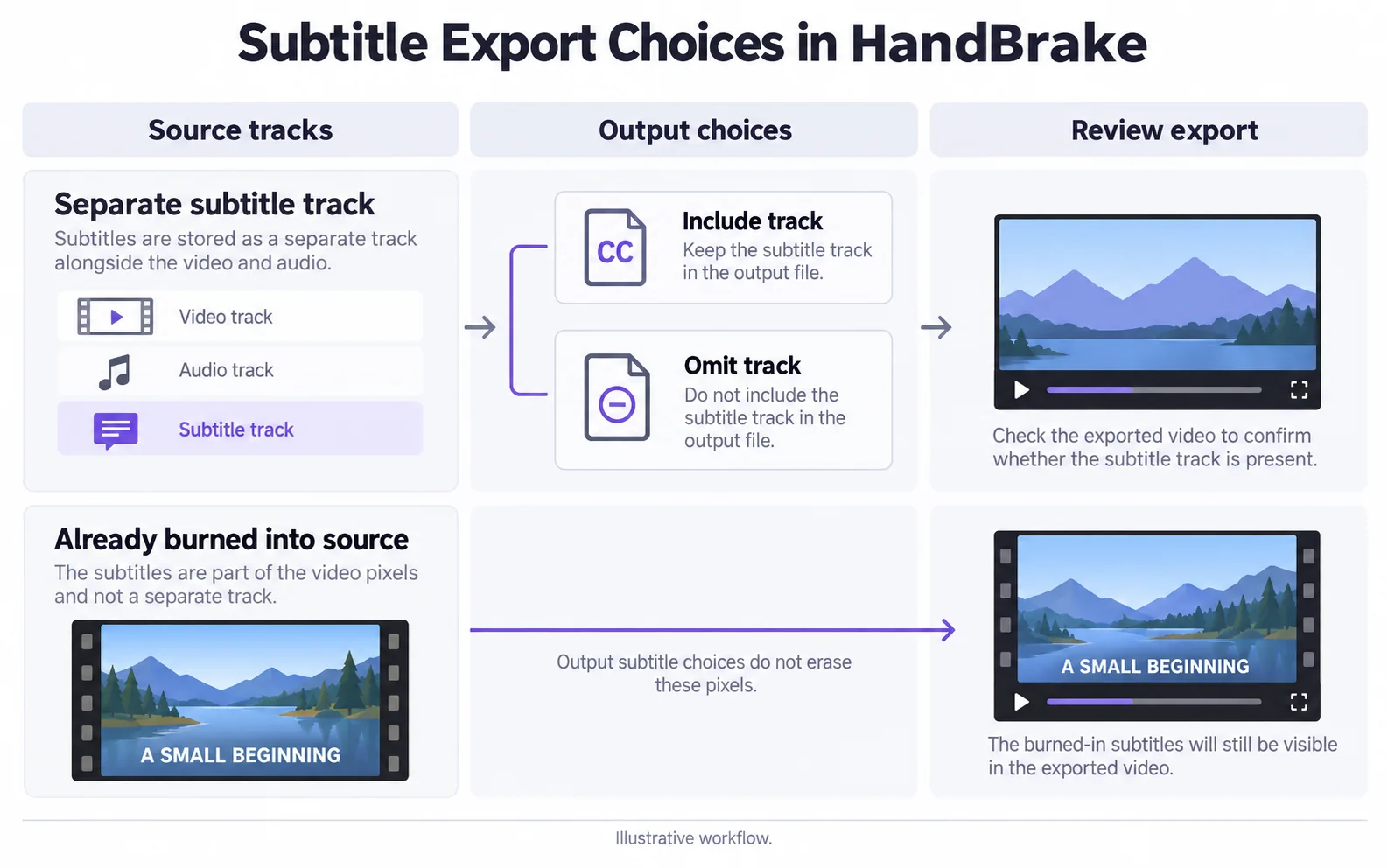
| Choice | Meaning | Does it erase existing picture text? |
|---|---|---|
| No unwanted subtitle track selected | The selected subtitle source is excluded from the new output. | No. |
| Burn In | Selected subtitle content is drawn into the output video. | No; it adds image text. |
| Pass-through / soft subtitle | Subtitle data is stored separately where supported. | No. |
Play the new video
Open the saved copy outside HandBrake. Check that unwanted subtitles are gone and that the picture, sound and full length look right.
Check more than whether the words disappeared
HandBrake makes a fresh video copy. Compare it with the original, especially in detailed or fast-moving scenes.
Check the saved video before sharing
- Open the new file and watch a scene that originally had subtitles.
- Check the subtitle menu: no unwanted subtitle languages should be available in a file saved without subtitles.
- Listen near the beginning and end. Check any other audio languages you want to keep.
- If subtitles return, copy the video to an empty folder and reopen it. A nearby subtitle file may be adding them.
- Check the full length and keep the original until you are happy with the result.
Try files with a separate subtitle track
These four-second samples show subtitles you can turn off. Open one in a player with subtitle controls and try it yourself. The third file shows the same video with those subtitles removed. All three are silent.
These samples keep the same video picture. Words fixed in the picture would need a different removal method.
Questions and answers
Will disabling Burn In erase text already in the source video?
No. It changes how selected subtitle tracks are handled during export, not text already visible in the source frames.
Can saving with HandBrake change the video quality?
Yes. It makes a fresh video copy, so export settings can affect the picture and file size. Check a short sample and keep your original.
Official references
Software diagrams are illustrations, not version-specific screenshots. Consult these guides for current controls.