
Remove Text from Video with After Effects
Based on linked official documentation · Updated · Editorial methodology
For editable text in an After Effects composition, remove the text layer. For text already in footage, a fill workflow estimates the covered region from surrounding information.
Documentation-based walkthrough · official references checked September 8, 2026 · controls vary by edition and device
Remove an independent text layer directly when possible. For text inside footage, After Effects Content-Aware Fill uses a transparent masked area and a generated fill layer to estimate a replacement background.
Remove a text layer when you have one
Hide the text layer to confirm the clean footage exists underneath, then remove or disable the intended layer for export. Check nested compositions if the words remain visible.
How to Remove Text from Video in Premiere ProPrepare a region for Content-Aware Fill
Adobe documents masking the unwanted region, opening Content-Aware Fill, choosing a fill method and analysis range, and generating a fill layer. Use the official walkthrough for the precise controls in your version.
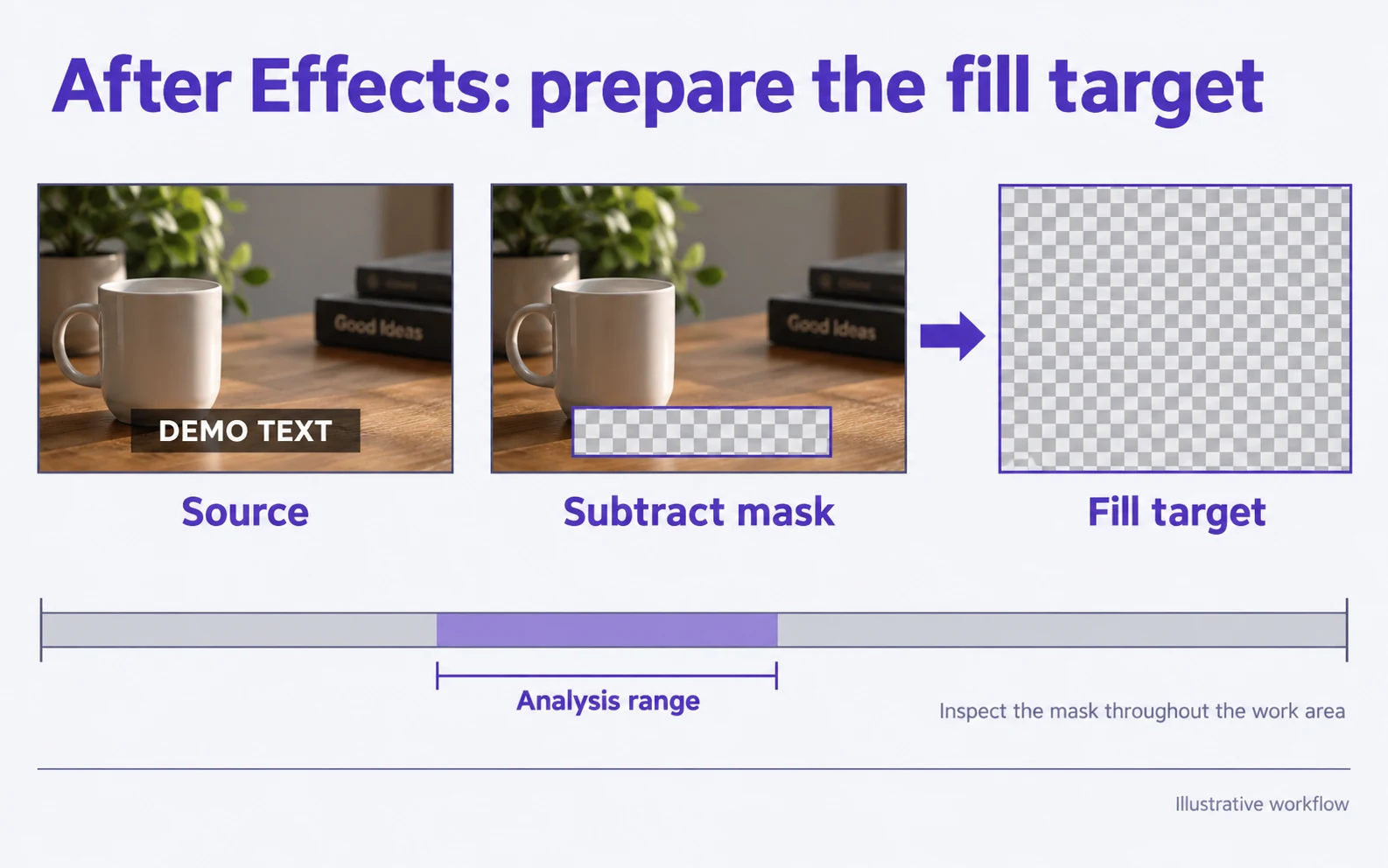
Create a transparent target area
Mask the unwanted text region and set the mask to Subtract. Animate or track the mask when needed so it covers the text throughout the shot.
Open the fill controls
Open Window → Content-Aware Fill. Inspect the Fill Target preview and set the analysis range to the intended work area.
Choose a fill method
Use the method suited to the shot. Adobe distinguishes moving objects, surfaces and edge blending; a flat surface and a moving person are different problems.
Generate and inspect the fill layer
Select Generate Fill Layer. Inspect the generated image sequence during movement and around the mask boundary.
Check: A completed render is not evidence that the background is correct.
Refine a difficult shot
When the fill cannot infer the region convincingly, the documented workflow supports reference-frame work. Preserve the source and recheck the full work area after a refinement.
Use motion to evaluate the repair
Inspect the shot before and after a person crosses the region. Watch skin, hair, fabric and repeated background lines. A fill can require additional masks or reference-frame work rather than a single automatic pass.
Remove Text from Video Without Blur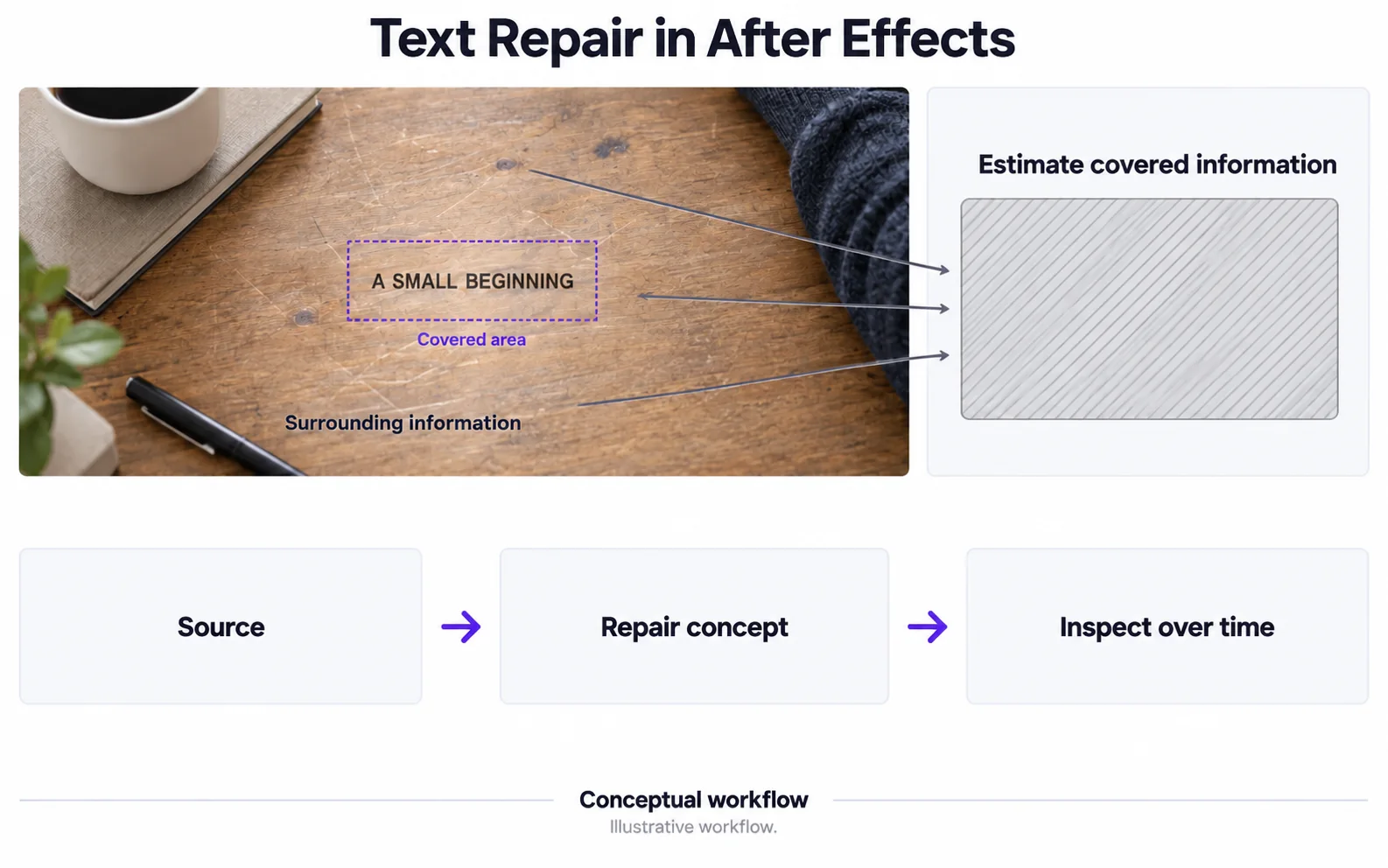
Keep repair and final export separate
Review the full work area before rendering the final edit. For a simple automatic alternative, process an exported supported clip below and compare the result before reimporting it.
Diagnose a poor fill before rendering the final edit
Look at the target region, the tracked mask and the surrounding source detail.
The fill follows the wrong area
Likely cause: The subtract mask may be drifting or missing part of the lettering.
What to do: Inspect and correct its movement through the affected shot before generating another fill.
The patch changes when lighting changes
Likely cause: The selected source information or fill method may not match the changing shot.
What to do: Review the official lighting/reference-frame options and test the difficult interval.
One frame is clean but the shot flickers
Likely cause: The reconstructed picture may be inconsistent across neighboring frames.
What to do: Play the full interval at normal speed and inspect consecutive frames before accepting the repair.
Original video and processing result
Compare the original and result as the video plays.
Questions and answers
When should I delete a text layer instead of using fill?
When text is an independent layer, the image underneath may already be available. Remove the layer instead of estimating replacement pixels.
What should I inspect when text crosses a moving person?
Check the person’s outline, texture and motion continuity through the entire affected region. A single clean frame is insufficient to verify the repair.
Official references
Software diagrams are illustrations, not version-specific screenshots. Consult these guides for current controls.