
Remove subtitles from video when the words stay visible with playback captions off. AI estimates the covered picture; compare the repaired scene on your own clip before using it.
Use automatic repair when subtitles remain visible in the saved video with subtitle display turned off. If you still have an editable caption layer, remove it in your editor before exporting.
Try your own video
Choose a local clip, preview it and review the cost before processing.
Free trial & upload limits
Get 3 trial credits after verifying your email.
Free accounts: 50MB · Paid accounts: 100MB
1 credit per started second · 3-credit minimum
Automatic removal may affect other text or logos. View pricing
Original video and processing result
Compare the original and result as the video plays.
From a saved clip to a checked result
Start with a scene that represents the subtitles and background in the rest of your footage. A plain title screen is not a useful test for a moving face covered by captions.
Choose the actual source file
Select a local MP4, MOV or WebM. Watch its opening scene in the local preview and confirm its duration and orientation.
Check: File selection alone does not upload or process the clip.
Confirm the included scene
Review the credit cost and processing range. If you need a scene from the middle, trim that scene into a new file in an editor before selecting it.
Check: An opening-only task produces an opening-only download.
Compare at matching moments
After processing, switch between Original and Result. Check a stationary subtitle, a caption change and a moment when the subject crosses the lettering.
Check: A missing word is only one part of a successful result; nearby detail should still be usable.
Save a separate result
Download the result, reopen that downloaded file and inspect the final processed frame. Keep the original for another edit or a different repair method.
What to inspect beneath a subtitle line
In the podcast sample, the caption overlaps the speaker and microphone area. In the dialogue sample, it covers a wide strip near the bottom. These are different reconstruction problems.
| Area | Look for | Why it matters |
|---|---|---|
| Letter edges | White fragments, dark outlines and punctuation left at the edge of a word. | An outline can extend beyond the main letter shape. |
| Subject detail | Changes in clothing folds, facial boundaries or a microphone edge. | Removing letters can also alter meaningful picture detail. |
| Caption changes | Texture that shifts as one subtitle is replaced by another. | A single still does not establish consistency across a clip. |
The podcast result at 1.00s replaces the dark two-line caption panel with the sweater and forearm picture. The matching detail below makes the repaired region easier to inspect.
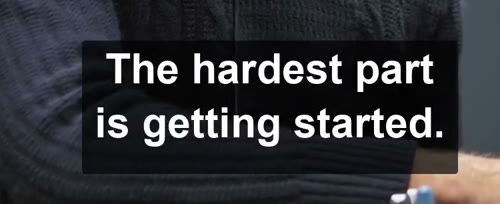
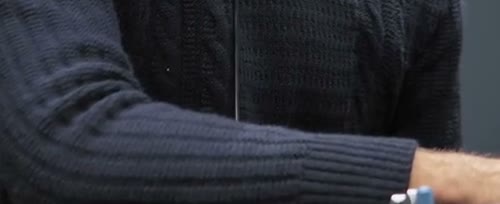
This is a still-frame observation from the supplied result. Play the sample to judge movement; it is not a guarantee of identical detail on another clip.
When another method gives you the cleanest starting point
A selectable subtitle track stores text separately from the picture. An editing project can also retain a clean video layer under its captions. Use that original information when it is available.
The words can be switched off
Make a new file without the selectable subtitle track; image repair adds no value to an already clean picture.
Remove selectable subtitlesThe text is still selectable in a project
Remove the caption object and export again so the unobscured source footage is used.
Find the editing routeResolve a problem before repeating a job
Use the source and downloaded file to identify the stage that needs attention.
The video will not preview
Likely cause: The browser may not be able to play the way this video was saved.
What to do: Check that the source plays locally, then export a compatible H.264 MP4. Do not rename the extension as a substitute for conversion.
The download is shorter than expected
Likely cause: The confirmation may have included only the beginning covered by the available credits.
What to do: Compare the output duration with the confirmed range in the task. Prepare the intended scene and review its cost before another job.
A background label changed too
Likely cause: The removal process is automatic and has no selected-text protection control.
What to do: Compare the original label. If preserving it is essential, use an editor with explicit region control or return to a clean source.
Questions and answers
Can subtitles that cannot be turned off be removed?
Yes. AI can attempt to repair subtitles burned into the frames. Results depend on the area covered, background detail and motion.
Does removing subtitles change the video frame?
The workflow repairs image content rather than cropping the picture. Pixels around the text may change; inspect the downloaded result.
Can I add new subtitles after removing the old ones?
Yes. Import the checked result into your editor and add replacement captions there. Keep those new captions editable in the project; this service does not generate or translate them.