
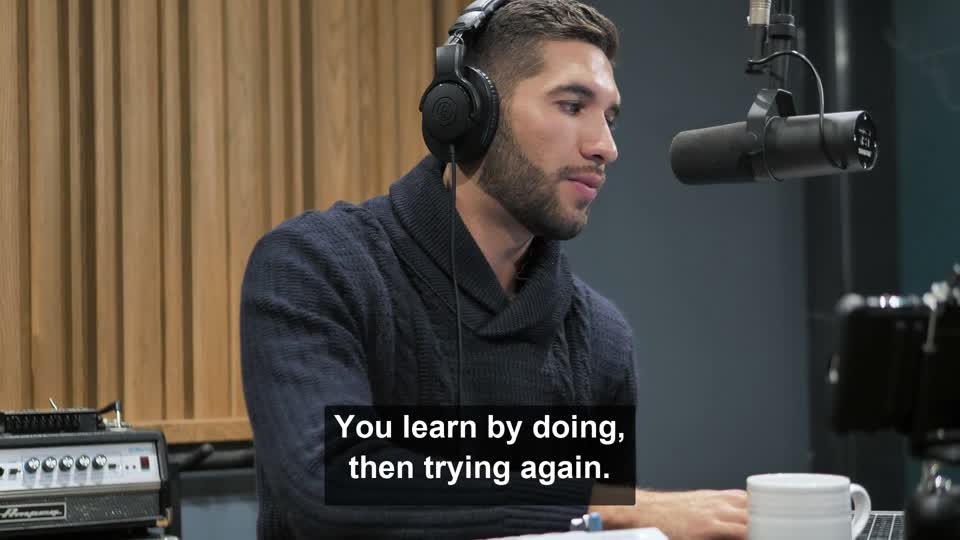
Give interviews a new audience
Remove burned-in podcast subtitles before adding a new language or an updated transcript.
Start with the clean result, then add your new subtitles in your usual editor.
AI video text remover
Remove burned-in subtitles, captions, and unwanted text from your video. Make room for your next edit.
Preview your clip first. Confirm the cost before processing.
Animated preview using actual example frames.
Preview first. Confirm the cost before processing.
Get 3 trial credits after verifying your email.
Free accounts: 50MB · Paid accounts: 100MB
1 credit per started second · 3-credit minimum
Explore three kinds of on-screen text, from interview subtitles to step-by-step captions.
Keep the footage you want to use. Remove the old text before adding a new message in your editor.
Remove burned-in podcast subtitles before adding a new language or an updated transcript.
Start with the clean result, then add your new subtitles in your usual editor.

Clear old captions from a vertical talking-head video before giving it a new caption style.
Review places where large words overlap the speaker or detailed backgrounds.

Remove outdated instructions from a demonstration so you can prepare an updated edit.
Automatic removal may also affect labels or other text you want to keep. Check the full result.
Select a clip from your device to preview it.
Confirm the processing length and credits, then start.
Review the repaired areas and save your result.
The AI video text remover reconstructs the area covered by text using the surrounding visual content. It estimates what belongs there; it cannot recover the exact pixels hidden behind the words.
Detailed backgrounds, moving subjects, and people’s edges may show smudges or other artifacts. Review the full clip when you erase text from video, especially where captions cross a face or an object.
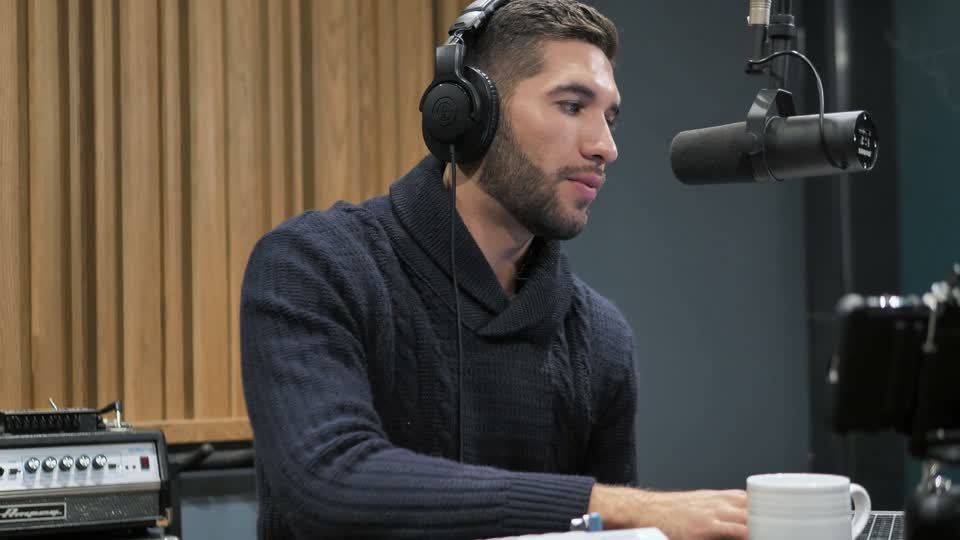
Matching crops from the podcast example. Inspect the knit texture and the edge of the arm, then play the full comparison to check motion.
Watch the full before & afterNot enough credits for the full video? Confirm a shorter opening clip or add credits. Only the confirmed portion is processed and downloaded.
Credit packs expire after 365 days. Subscription credits last up to 90 days with a 2x rollover cap.
For short social clips and occasional edits.
$16.06At the 140-credit pack rate
Billed monthly · Credits issued monthly
Covers up to 225 seconds of video each month
For active creators handling longer footage.
$46.38At the 140-credit pack rate
Billed monthly · Credits issued monthly
Covers up to 650 seconds of video each month
For teams and frequent production workloads.
$121.31At the 140-credit pack rate
Billed monthly · Credits issued monthly
Covers up to 1700 seconds of video each month
Cancel anytime · No hidden fees · Private source and result storage
Get 3 trial credits after verifying your email. Processing costs 1 credit per started second, with a 3-credit minimum. Trial credits let you try a short clip; longer clips require more credits.
Yes. It is designed to automatically detect and remove text embedded in the video image, including burned-in subtitles and captions. Results vary with the background, text size, and motion.
No. Processing is automatic. There is no box selection or option to preserve specific words. Other visible text or logos may also be affected, so review the result carefully.
No. AI estimates the image beneath the text. Complex backgrounds, movement, and people’s edges can show artifacts. Compare the result with your original before downloading.
No. You can use the video text remover in your browser. Select a video for a local preview, then sign in and confirm the clip and cost before processing starts.
Upload MP4, MOV, or WebM, up to 1080p. Free accounts can upload files up to 50MB; paid accounts can upload up to 100MB.
With at least 3 credits, you can process the beginning of the video that your balance covers. The rest is excluded from processing and the download. The exact range is shown before you confirm. Below 3 credits, add credits before starting.
Credits charged for a failed processing job are refunded automatically. Open My Videos to check the job status and your balance before trying again. A connection interruption alone does not mean processing has failed.