
How to Remove Text from Video in CapCut
Based on linked official documentation · Updated · Editorial methodology
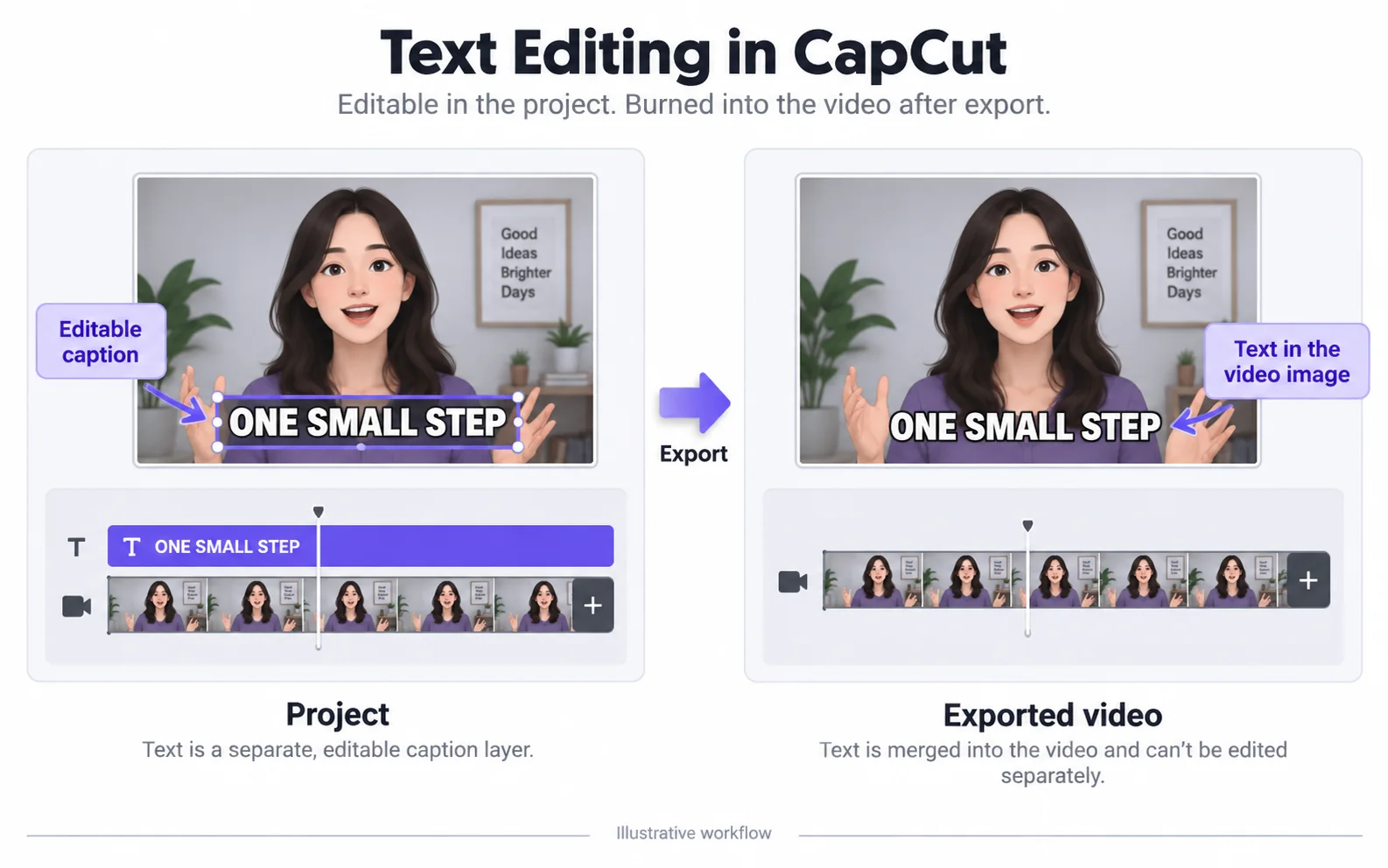
To remove text in CapCut, open the project that created it and delete the separate caption or title clips, then export a fresh copy. If you have only a captioned export, importing it into a new CapCut project does not restore the old text layer. Check whether the words are switchable subtitles or pixels in the picture before choosing a file-level edit.
CapCut project text and sourced desktop patch workflow; generated illustrations, no tested CapCut application screenshot
In the original CapCut project, select and remove the separate text or caption clips, then export and reopen a new copy. If only a captioned video remains, first test whether the words are a switchable subtitle track; burned-in words require a clean source or a picture-level edit.
Try your own video
Choose a local clip, preview it and review the cost before processing.
Free trial & upload limits
Get 3 trial credits after verifying your email.
Free accounts: 50MB · Paid accounts: 100MB
1 credit per started second · 3-credit minimum
Automatic removal may affect other text or logos. View pricing
Original video and processing result
Compare the original and result as the video plays.
Start with the file that actually contains the text
The decisive question is whether you can select a separate caption or title clip in the original CapCut timeline. Pause at a visible word and inspect the track beneath the video. Selecting the source video itself is not proof that a caption layer exists. The diagram below is a generated explanation of the project/export distinction, not a CapCut screenshot or a demonstrated cleanup result.
| What you have | Check at a captioned frame | Least destructive route |
|---|---|---|
| Original CapCut project with a separate text or caption clip | Select the text clip in the timeline without selecting the underlying footage. | Remove or hide the unwanted text clips, then export from the source media. |
| Original project, but only a captioned video clip is selectable | Disable other text layers and check whether the words remain in that video preview. | Find an earlier clean source or treat the imported clip as a flattened export. |
| Only an MP4/MOV/WebM export | Open the saved file outside CapCut and switch player subtitles off. | If the words vanish, omit the subtitle track; if they remain, choose an image edit. |
Route 1: the original CapCut project still has editable text
Duplicate the project or preserve a recoverable copy before editing. CapCut's help page, checked November 10, 2026, describes separate auto-caption and manual-text lanes on desktop, web and mobile; its exact menu labels can vary by version. Work on the timeline that created the export, not on a new project containing the exported video. A caption series may be many clips, so deleting the one under the playhead is only the first check.
Match a visible word to its timeline item
Pause where the unwanted text is fully visible. On desktop or web, inspect the text/caption lanes and select the item spanning the playhead; on mobile, tap the corresponding caption or text clip. Briefly hide it if your version allows. The picture should remain while only that text disappears.
Check: You can isolate the unwanted object without removing video or audio.
Remove the intended layer or segments
CapCut's help page says to select an unwanted desktop/web text clip or track and Delete, or tap a mobile text clip and the trash icon. If there are duplicate auto-caption and manual-text lanes, remove only the redundant lane. Zoom in to inspect overlapping durations before deleting a second line.
Check: The intended text is absent at the beginning, middle and end of its original span.
Inspect other graphics before exporting
Play from just before the first caption to after the last. Check title templates, stickers, manually placed labels and later auto-caption clips separately. If a branded label must remain, do not select its whole track by accident.
Check: The source footage, intended labels and audio still play as expected.
Export a distinctly named copy and reopen it
Export from the edited project, keeping the original project and source media. Open the newly saved file in a different player, verify the same sample times and listen to the audio. A timeline preview alone cannot establish what the deliverable contains.
Check: The new export is caption-free where intended, with the expected duration and sound.
If a second caption appears in the export
A common failure is to delete one visible sentence while another caption lane remains underneath. CapCut's help article identifies overlapping clips, duplicate auto-caption tracks and manually added text as causes of captions stacking in an export. Check both the text lanes and the durations of clips within one lane; a line can extend into the next line's time. Do not delete the base video to cure a duplicate text track.
A short timeline audit before another export
- At the first bad frame, identify every text or caption item whose time range covers the playhead.
- Temporarily hide the suspected lane and see whether one or both lines disappear.
- Zoom in around the line transition; trim an overlapping duration if the words are meant to remain elsewhere.
- Reopen the new export from disk. CapCut notes that a browser preview may be misleading.
Route 2: you have only a captioned export
Importing an exported file gives CapCut a video clip, not the original caption objects. Test the exact file in a player with subtitle display off. If the text disappears, it is a selectable subtitle source and should be omitted during a new save; image repair would change pixels unnecessarily. If it stays, the lettering is encoded in each affected frame. An editor cannot reveal the exact background pixels that were overwritten. Keep an untouched copy and decide whether a clean source, a crop, a deliberate cover, a static patch or automatic repair best fits the shot.
| Situation | Useful route | What to check |
|---|---|---|
| Original uncaptioned source exists | Rebuild the edit with that source. | Match framing, edits and audio before exporting. |
| Text lies on a disposable border | Crop only if the new framing is acceptable. | Faces, captions and platform safe areas after the crop. |
| Text covers a still background; a clean frame exists | Try CapCut's documented freeze-frame patch on desktop. | Patch edges, lighting and any subject crossing it. |
| Text crosses moving detail and full framing matters | Test automatic picture repair on a short exported clip. | Motion, other visible writing and the actual downloaded file. |
A CapCut desktop patch when the background is truly still
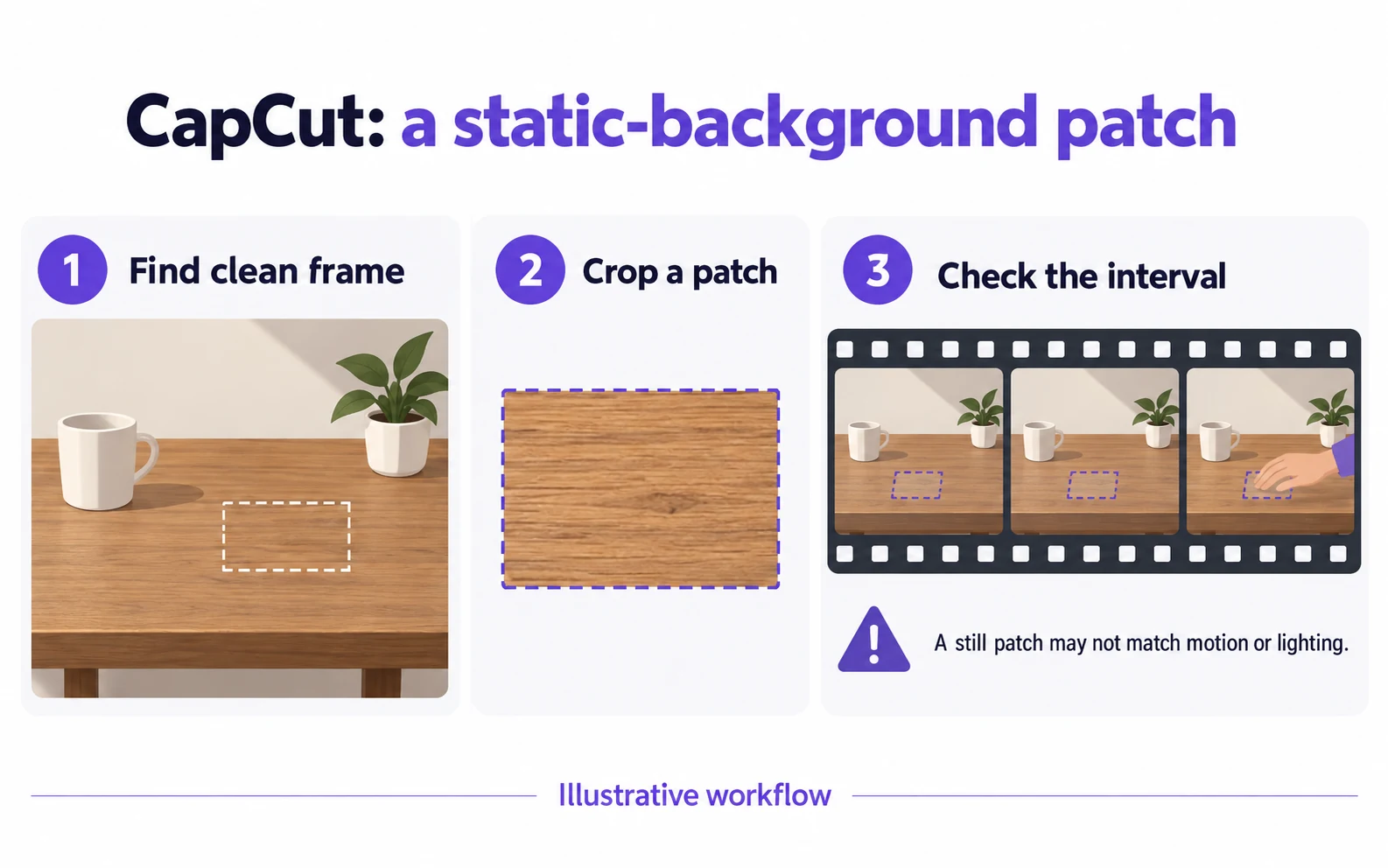
CapCut's removal guide, checked November 10, 2026, documents importing a video, taking a clean freeze frame, placing it above the footage, cropping a patch and positioning it over the text. The diagram below is a generated workflow illustration, not a screenshot of the application or proof that a particular patch succeeded. This method substitutes a different piece of picture. It works only when the area behind the text can stay visually consistent through the chosen interval.
Find a clean reference frame
In the same shot, locate a moment before the overlay appears or after it leaves. The exact table, wall or other surface behind the text must be visible; a clean frame from a different camera angle will not align.
Make the documented patch
In CapCut desktop, use Freeze on that clean moment, position the freeze-frame clip above the source track, crop the needed region and align it over the lettering. Keep the patch no larger than necessary; inspect its border at normal viewing size.
Play the whole affected interval
Check the first and last frame of the overlay, a point in the middle, and any frame where a hand or face crosses the patch. If the surface moves, the patch can look frozen even though one paused frame is convincing.
Check: The replacement stays believable through time, or you reject this method and keep the source.
A concrete exported-caption test: two lines and a moving hand
Our existing eight-second talking-head sample has an outlined line at 2.667 seconds, a different line at 2.700 seconds and a hand entering the caption area near 7.000 seconds. These are frame observations from a licensed stock-based, owner-confirmed original/result pair; there is no CapCut project for this sample and the demonstration words are not a transcript of its silent footage. If this captioned export were your only file, deleting a newly added CapCut text item would leave those original words untouched. A clean-frame patch would have to survive both the line switch and the moving hand. Use those three moments as a short acceptance test for your own clip; the linked caption page shows the matching real frame pairs and their provenance.
View the three verified caption-change and hand-motion frame pairsCompare automatic repair with blur and other coversIf you test automatic repair on the exported clip
RemoveSubs accepts local MP4, MOV and WebM files with burned-in text; it does not open a CapCut project, delete only selected words, or protect chosen logos. Select the exported file and preview it first. Before confirming a processing job, read the duration, credit estimate and covered time range in the workspace. If your balance covers only the beginning, a problem at 7 seconds must be inside that beginning range; trim a later target into a new source file rather than expecting the tool to jump to it. The repair estimates missing picture content, so retain the original and inspect any detail that was hidden by a solid card or thick outline.
Choose a revealing short clip
Include the text entering or changing, a moving object crossing it and a little clean footage on either side. Do not spend credits on a plain opening frame if the difficult text appears later.
Check the actual quote and range
Signing in and selecting a file are not processing. Review the on-screen cost and the covered start-to-end interval before you confirm; if the needed scene falls outside it, cancel and prepare another clip.
Judge the saved file
Compare the original and result at matching times, then download the result and play it outside the workspace. Look for leftover outlines, altered nearby signs, flicker around hands or fabric, duration changes and audio differences. The site's demonstration samples are silent, so test your own sound.
Diagnose what still looks wrong
Use the observed failure to return to the appropriate source. Repeating the same export or processing job without changing the cause rarely helps.
Deleting the selected item removes the scene or its sound
Likely cause: The video or linked audio item was selected, not a separate text clip.
What to do: Undo immediately. Inspect the timeline lanes and select only the caption object; preserve the original project.
The new export still shows the old words
Likely cause: A second text lane remains, the wrong project version was exported, or the imported source already contains the words.
What to do: Hide every editable text lane and preview the source video. If the words persist, find a clean source or follow the exported-file route.
Two sentences overlap near a cut
Likely cause: Caption clips or auto/manual lanes overlap in time.
What to do: Zoom in at the transition, inspect every active text item and trim or remove only the unintended overlap.
A freeze-frame patch looks fine paused but jumps during playback
Likely cause: The camera, subject, light or background changes while the patch is static.
What to do: Shorten the patch to a stable interval, use a different clean source, or test another image-editing method.
The repaired result removed useful labels or stops early
Likely cause: Automatic repair has no protected-text selector; a credit-limited run may cover only the start of the file.
What to do: Use an editor with explicit controls for labels. For a later scene, trim the target to a separate file and confirm the new covered range.
Questions and answers
Can I delete captions from an exported CapCut video by selecting them?
Only if you reopened the original project and its caption objects. An export imported as a video clip does not recreate those objects. Test whether the words are a switchable subtitle track or burned into the image.
Does CapCut's freeze-frame method restore the background?
No. It places a clean patch from another frame over the lettering. Check its alignment and motion across the whole affected interval, especially where a person or light changes.
Official references
Software diagrams are illustrations, not version-specific screenshots. Consult these guides for current controls.