
Keep the edges of your composition while repairing burned-in subtitles. This is useful when cropping would cut off a face, hands or other important detail.
Keeping the frame avoids losing picture at the border. It does not guarantee unchanged pixels: automatic repair estimates the region covered by subtitles, while a crop removes the entire strip.
Compare the repaired picture
Compare the original and result as the video plays.
The cost of removing the subtitle band
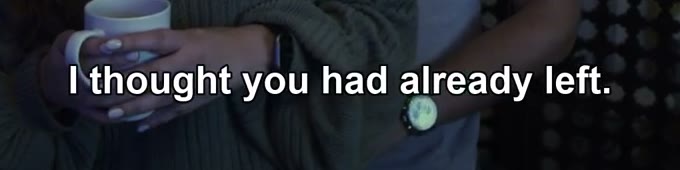
In the dialogue sample, the subtitle shares its horizontal band with the cup and hands. Removing the bottom fifth of the image removes all of that band, not just the words.
Original frame
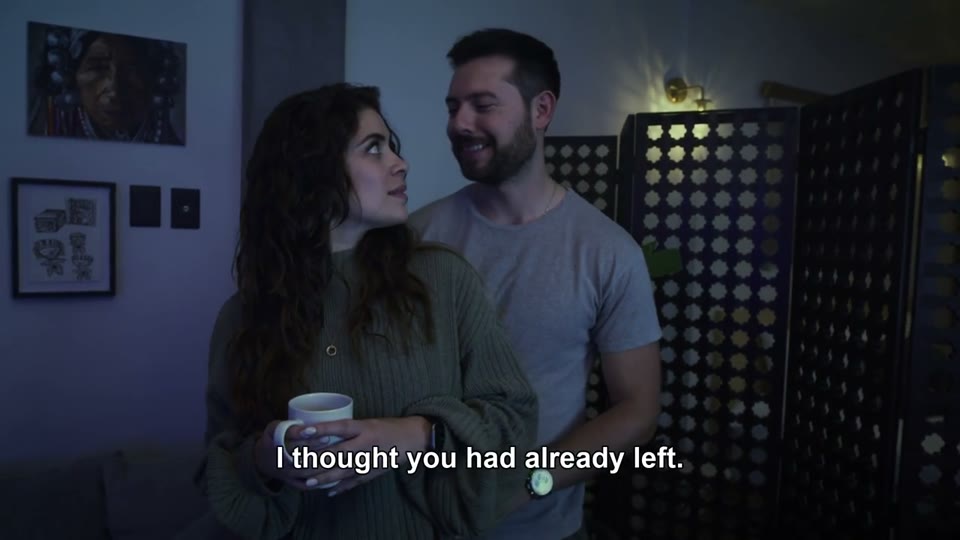
The subtitle line crosses clothing and the area near the hands. The full 16:9 composition remains visible.
A deliberate blur
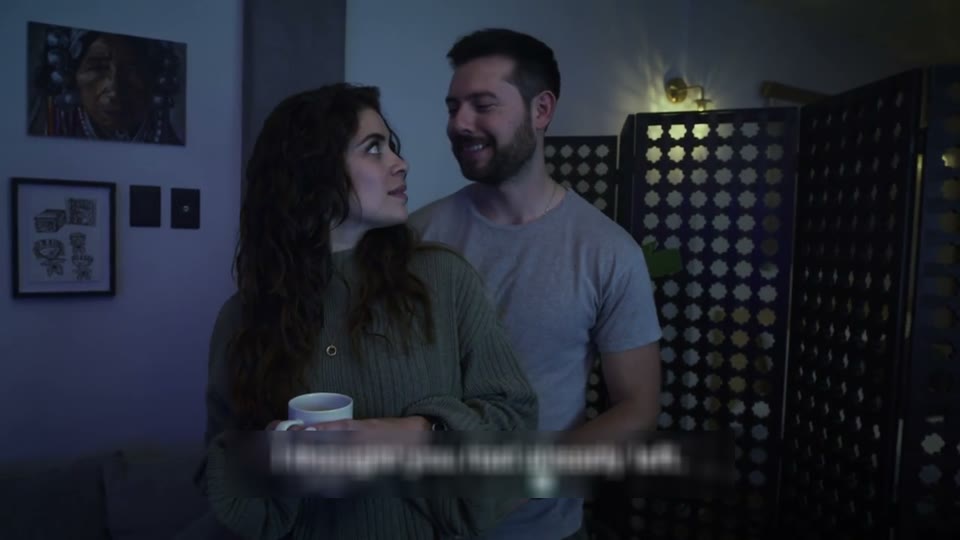
The letters become a visible softened band. It also softens the picture inside the selected rectangle.
Bottom 20% cropped
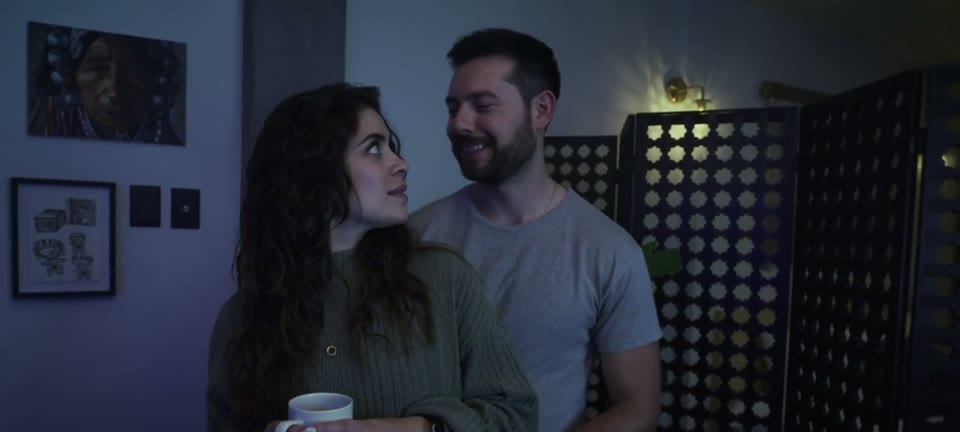
The subtitle is outside the remaining frame, but part of the cup, hands and lower composition is lost. The image is not stretched to restore 16:9.
Automatic repair result
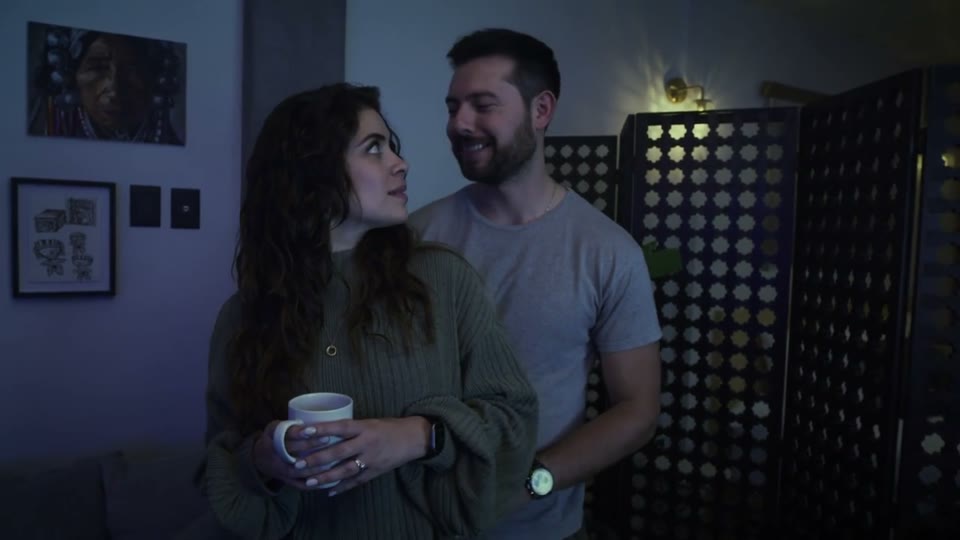
The supplied output has no subtitle at 1.00s and keeps the full frame. The subjects’ poses differ from the input sample, so do not use this still pair to score recovery of hidden detail.
Inspect the retained detail
A repaired output can keep the framing while changing detail where text used to be.
At 1.00s, the repaired version no longer shows the subtitle line. The hands, cup and sweater remain inside the frame, unlike the cropped demonstration.
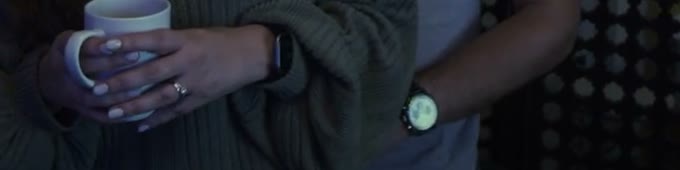
This pair shows that the output retains a full frame, but the differing poses prevent a controlled detail-restoration comparison. Inspect the moving output and its continuity before using it.
Distinguish framing from processing duration
Two different changes are often described as “cutting the video.”
| Change | What becomes smaller | What to check |
|---|---|---|
| Crop the picture | The width or height of each frame. | Whether important objects were removed at the edges. |
| Trim the scene | The time interval included in the file. | Whether the intended start and end remain. |
| Process an opening segment | Only the confirmed beginning is included in this result. | The credited range and actual output duration. |
Verify the composition before adding new captions
Use the downloaded output as the source for the next edit.
Composition check
- Compare the top, bottom and both side boundaries with the input.
- Check a cup, face, hand or other subject close to the subtitle band.
- Do not confuse black bars added by the player with pixels removed from the file.
- Confirm that the exported duration includes the complete scene you intended.
Try your own video
Choose a local clip, preview it and review the cost before processing.
Free trial & upload limits
Get 3 trial credits after verifying your email.
Free accounts: 50MB · Paid accounts: 100MB
1 credit per started second · 3-credit minimum
Automatic removal may affect other text or logos. View pricing
Questions and answers
Will the result keep the same frame shape?
The workflow does not offer frame cropping. Check the exported file for the retained composition and for changes in the repaired area.
Is processing only the beginning the same as cropping the picture?
No. Prefix processing shortens the video in time; it does not cut a strip from the image.