
A movie file introduces two separate questions: how its subtitles are stored, and how much of the video you actually need to process.
For a movie file, remove switchable subtitle tracks before considering image repair. If the words are burned in, prepare representative scenes and review their duration and credit cost rather than assuming every shot will behave alike.
Remove tracks before considering image repair
If subtitles are switchable, use a subtitle export steps. It can avoid running visual repair over an entire film. If they are hardcoded, inspect several scenes because lighting, texture and subtitle placement may change.
How to Remove Subtitles from an MKV FilePrepare the scene you need
A long film may exceed the upload-size limit. Export a short supported clip from a local editor first. This tool does not let you choose a middle scene after upload; its partial-processing option covers only the beginning.
Open the movie in your video editor
Find the scene you actually want to use.
Trim to that scene
Set the start and end of the clip. For example, keep 30 seconds around a subtitle you want to remove.
Save the clip as a new MP4
Play it to check that you kept the right scene and sound, then choose this short file for online removal. Keep the full movie unchanged.
Review credits against the selected duration
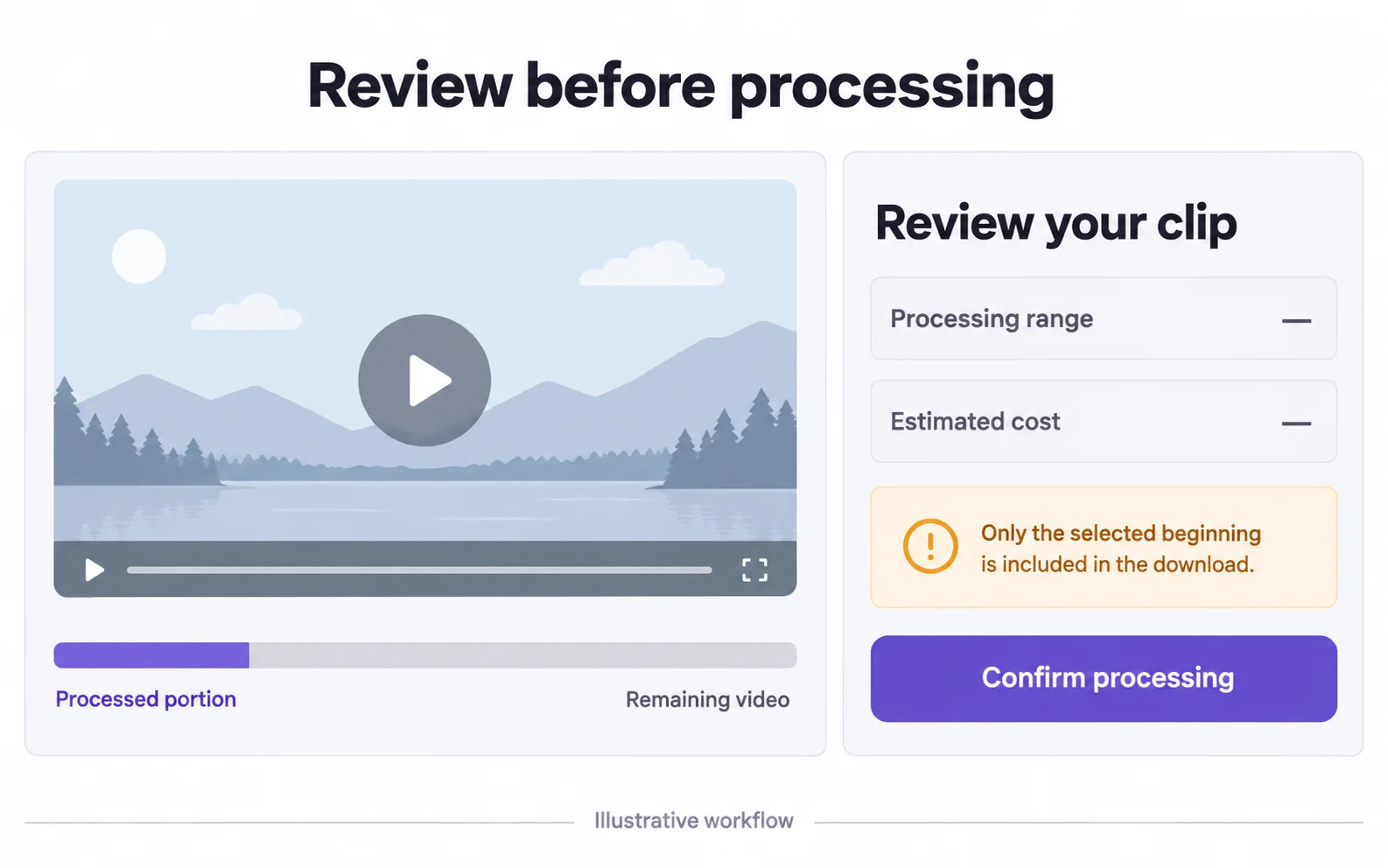
The confirmation shows the included range and cost. An opening-segment result contains only that segment. Do not expect a full-length movie download when your balance covers a shorter period.
| Included video | Credits |
|---|---|
| 3 seconds | 3 credits |
| 30 seconds | 30 credits |
| 60 seconds | 60 credits |
| 180 seconds | 180 credits |
One credit per started second, with a three-credit minimum. Your confirmation shows the actual included range. These are usage examples, not plan prices.
Watch scene cuts and dark backgrounds
Subtitle repair can behave differently across cuts, faces and low-light scenes. Test a representative section, inspect it at normal speed and keep your original movie file.
| Scene | Why test it | What to compare |
|---|---|---|
| Close-up dialogue | Faces or clothing pass behind the subtitle band. | Subject boundaries and texture. |
| Dark shot | Soft patches may stand out against low-detail areas. | Brightness changes and residual lettering. |
| Scene cut | The available background changes abruptly. | The frames immediately before and after the cut. |
Original video and processing result
Compare the original and result as the video plays.
Questions and answers
Can I upload a full-length movie?
Only if the file meets the actual format and size limits; many full-length movie files do not. Prepare a shorter supported clip and review its credit cost.
Can I choose a scene from the middle in this tool?
No. Trim the desired scene in another editor first. Partial processing in this tool starts at the beginning of the uploaded clip.