
Quitar subtítulos en Filmora
Based on linked official documentation · Updated · Editorial methodology
In Filmora, remove editable subtitle or title items from the project before export. An imported flattened video needs a different method for words already in its picture.
Documentation-based walkthrough · official references checked September 8, 2026 · controls vary by edition and device
For editable Filmora titles or subtitles, select the text item on the timeline and delete it. If the words already exist in the imported video, deleting a project title does not alter those source pixels.
Use the project’s text track
Select the intended title or subtitle item on the timeline and delete it. Filmora’s text-editing guide documents deleting a text track or selected title. Preview every section that used a caption, not just the current playhead position.
Find the intended title or subtitle item
Place the playhead over visible text and select its corresponding timeline item.
Delete the text item
Filmora’s official guide describes the Delete key or the text-track context-menu Delete option.
Check: The source video remains in the timeline.
Check the whole text interval
Play into later captions and title animations. Remove any other intended text items and check transitions.
Save and verify a separate export
Keep the editable project and source media. Reopen the export to verify the whole affected interval.
Keep the underlying footage
Do not remove the whole video clip when the target is a separate text item. Keep a copy of your project so you can restore captions or export another language version later.
If you only have an exported video
The words may no longer exist as selectable project text. Use a video-repair workflow if you need to change those pixels, and inspect faces, textures and caption transitions afterward.
Eliminar subtítulos incrustados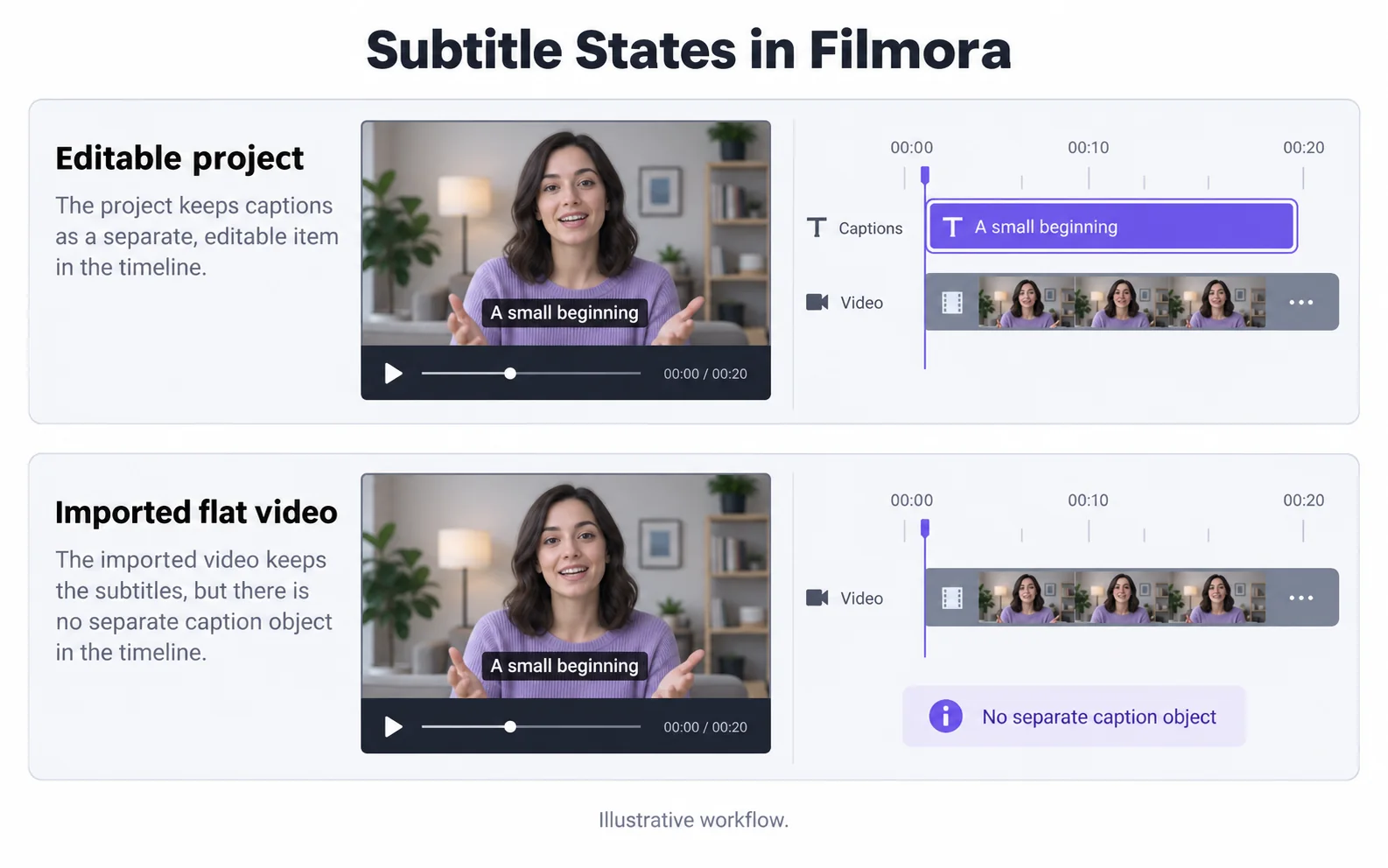
Separate subtitles from software watermarks
A watermark added by an editor’s export conditions is not the same as a caption you created. Check the editor’s legitimate export options for that case; deleting a subtitle track does not change those conditions.
Find the source of any words that remain
Subtitle edits and export branding are separate problems.
Later captions remain
Likely cause: The edit removed only one text item.
What to do: Check subsequent title/subtitle objects along the complete timeline.
Words remain inside the imported clip
Likely cause: The source file contains burned-in text.
What to do: Use the original clean media or prepare an image-repair workflow.
An editor watermark remains
Likely cause: The mark may come from the editor’s export conditions rather than a subtitle item.
What to do: Check the editor’s applicable export options. Deleting a caption does not change account or export entitlements.
Video original y resultado
Compare the original and result as the video plays.
Questions and answers
Can I delete subtitles if I still have the Filmora project?
Yes, when they are editable project items. Remove the relevant text items and export a new copy, checking the full timeline.
Is a software export watermark the same as a subtitle?
No. They come from different sources. Use the editor’s applicable export options for its software watermark and treat subtitle editing separately.
Official references
Software diagrams are illustrations, not version-specific screenshots. Consult these guides for current controls.