
Hapus subtitle dengan Avidemux
Based on linked official documentation · Updated · Editorial methodology
Avidemux subtitle questions often mix playback settings, selectable subtitles and text burned into the picture. Name the task first; a subtitle filter is not automatically an eraser.
Capability guide based on the Avidemux Subtitler documentation · not a claim of tested reconstruction features
The documented Avidemux Subtitler filter burns supplied subtitles into a video. Its presence does not demonstrate a reverse operation that restores the pixels behind existing subtitles.
Choose the task before choosing a filter
Subtitle rendering, track removal and image reconstruction are different operations.
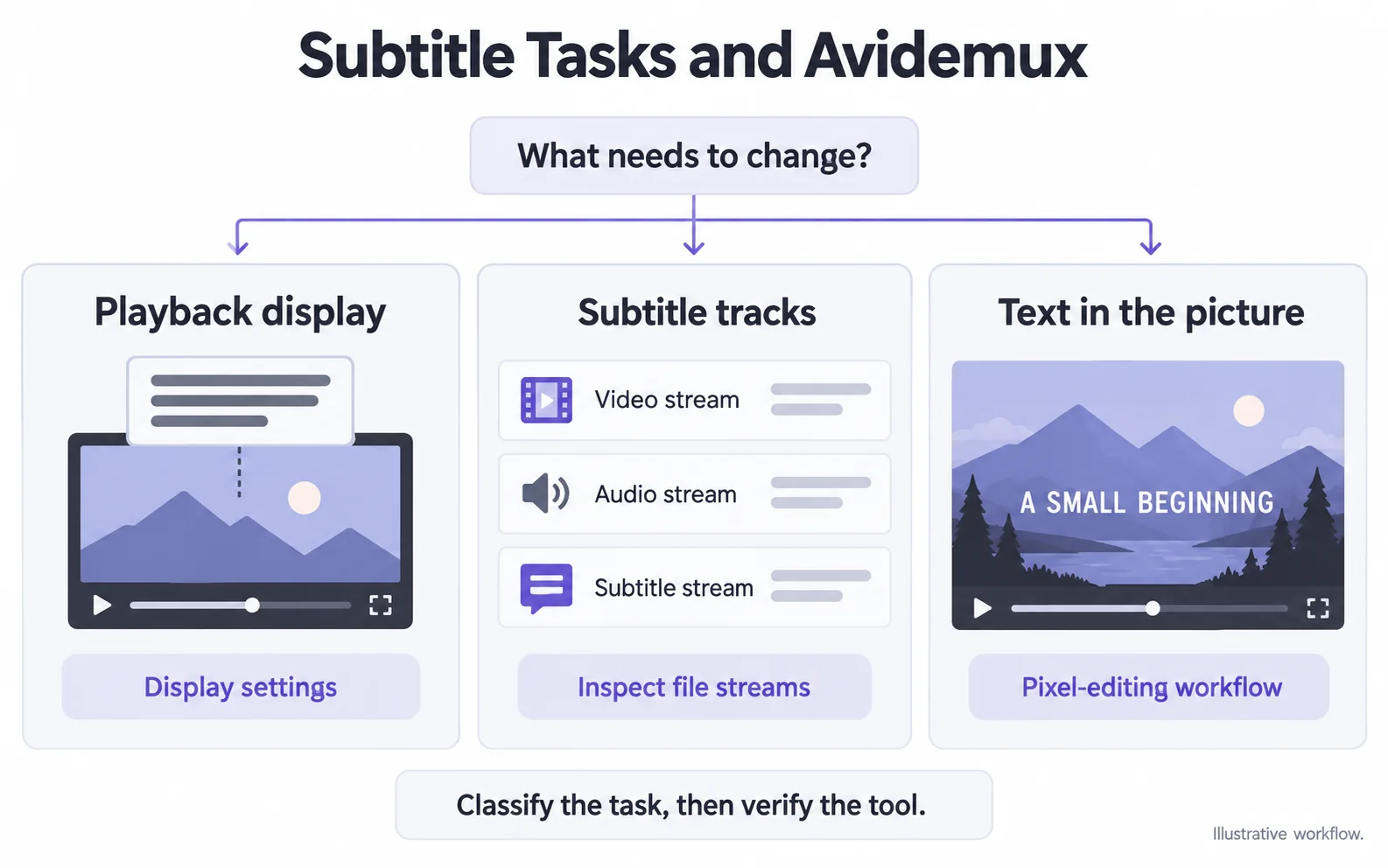
Only watch without subtitles
Turn subtitles off in your player if you only want to watch without them.
Turn off subtitles in VLCRemove an internal selectable subtitle track
Use an app with subtitle export settings to save a new copy without unwanted subtitles.
Follow the simple export stepsRemove words already in the picture
First prepare a supported clip, then inspect an image-editing method.
Understand hardcoded subtitlesPlayback display is not file editing
If you only want to watch without a separate subtitle track, use the player’s subtitle controls. That does not necessarily change the stored file.
A subtitler filter adds text
Avidemux’s documented Subtitler filter burns supplied subtitles into video. Its existence is not evidence that the same filter can reverse burned-in words or reconstruct covered pixels.
For a file to share, follow the export steps
Use a desktop app with subtitle settings to save a separate copy. Keep the original, leave unwanted subtitles out and play the result to check its picture and sound.
Follow the HandBrake walkthroughFor hardcoded words, evaluate image repair
Cropping or obscuring a subtitle area changes the image differently from reconstruction. If you need a repair attempt, convert unsupported AVI or MKV footage to a supported file first and inspect the result over time.
Questions and answers
Can Avidemux restore pixels hidden by hardcoded subtitles?
The documented subtitle-rendering filter adds subtitles; it does not establish a reconstruction workflow for hidden pixels. Use an appropriate image-repair tool for that task.
Which subtitle task should I solve with a different tool?
For watching, turn subtitles off in a player. For sharing, save a copy without selectable subtitles. For words fixed in the picture, use picture repair.
Official references
Software diagrams are illustrations, not version-specific screenshots. Consult these guides for current controls.