
CapCutで動画の文字を消す方法
Based on linked official documentation · Updated · Editorial methodology
In CapCut, first find out whether the text is still an editable caption or already part of an imported video. Deleting a text object and repairing pixels are different tasks.
CapCut project editing and documented desktop masking workflow · not a tested mobile/version walkthrough
Delete a caption object when it is still editable. If clicking the words selects the whole imported video, the lettering is already part of that picture: removing another caption layer will not erase it.
Choose the route that matches your project
Keep a copy of the original project before removing items. A clean export from that project is a better starting point than reconstructing pixels it still contains.
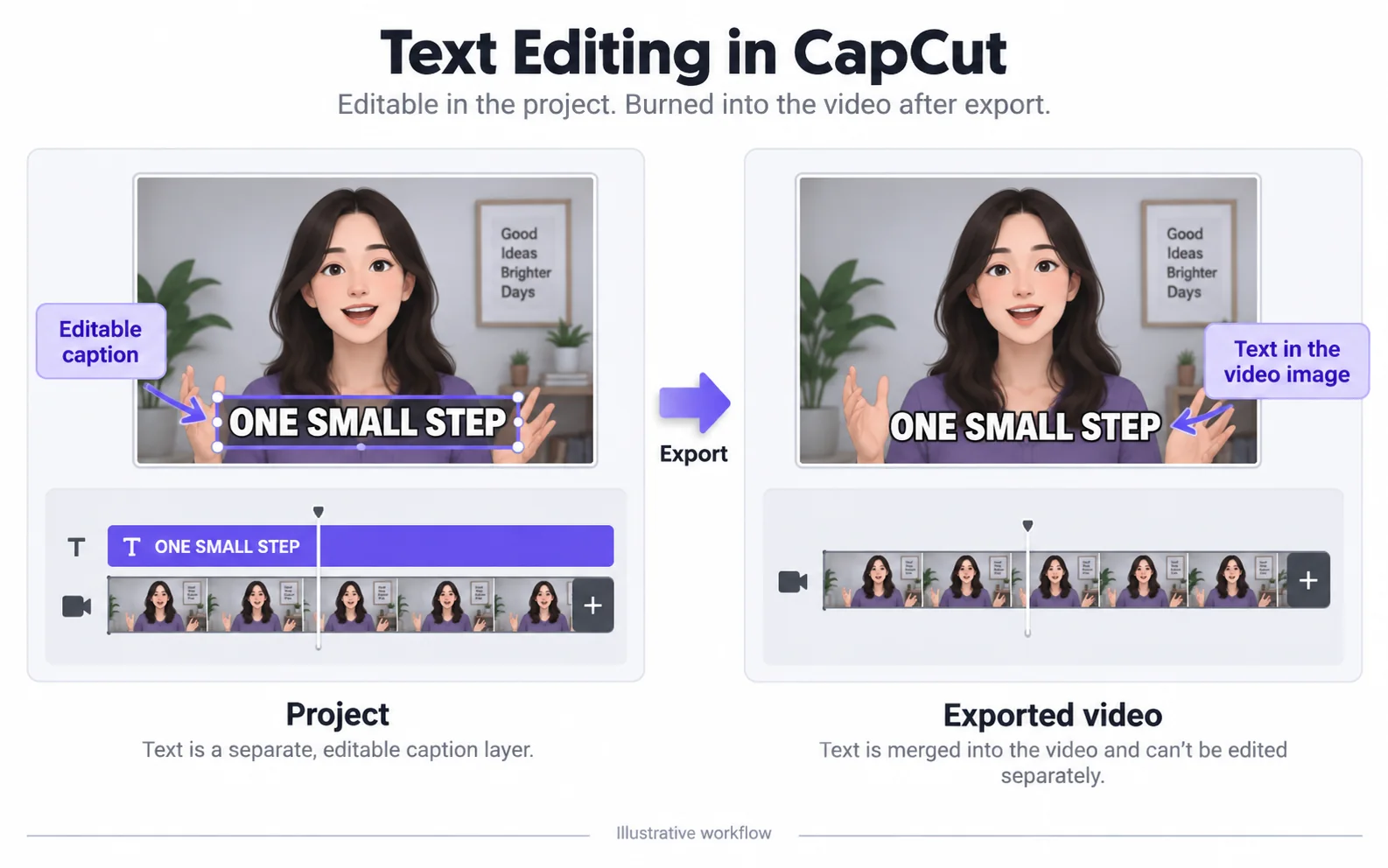
| What you can select | What it means | Start here |
|---|---|---|
| A separate text or caption item | The text is editable in this project. | Remove that item and inspect the full timeline. |
| Only the imported video clip | The words may be burned into the imported picture. | Use an image-editing route or return to the source project. |
| An exported video with no project | The caption objects are no longer accessible in that file. | Inspect repair, cropping or a clean replacement source. |
Remove editable captions without deleting the footage
Use the project that created the text, rather than starting a new project from its captioned export.
Locate a captioned moment
Move the playhead to a visible subtitle. Select the corresponding text or caption item in the timeline.
Check: The selected object is text; the video clip below remains a separate item.
Remove the intended text item
Delete that caption object, then preview the same moment. If the video disappears too, undo and select the text item instead.
Check the rest of the sequence
Move through later captions. Remove every intended text segment or use the caption selection controls available in your version.
Check: Deleting the first visible caption does not establish that later segments are gone.
Export and reopen a new copy
Choose a new output name, export, and play the result outside the editor. Check the start, a later subtitle position and the final scene.
静的な背景のためのデスクトップマスキング方法
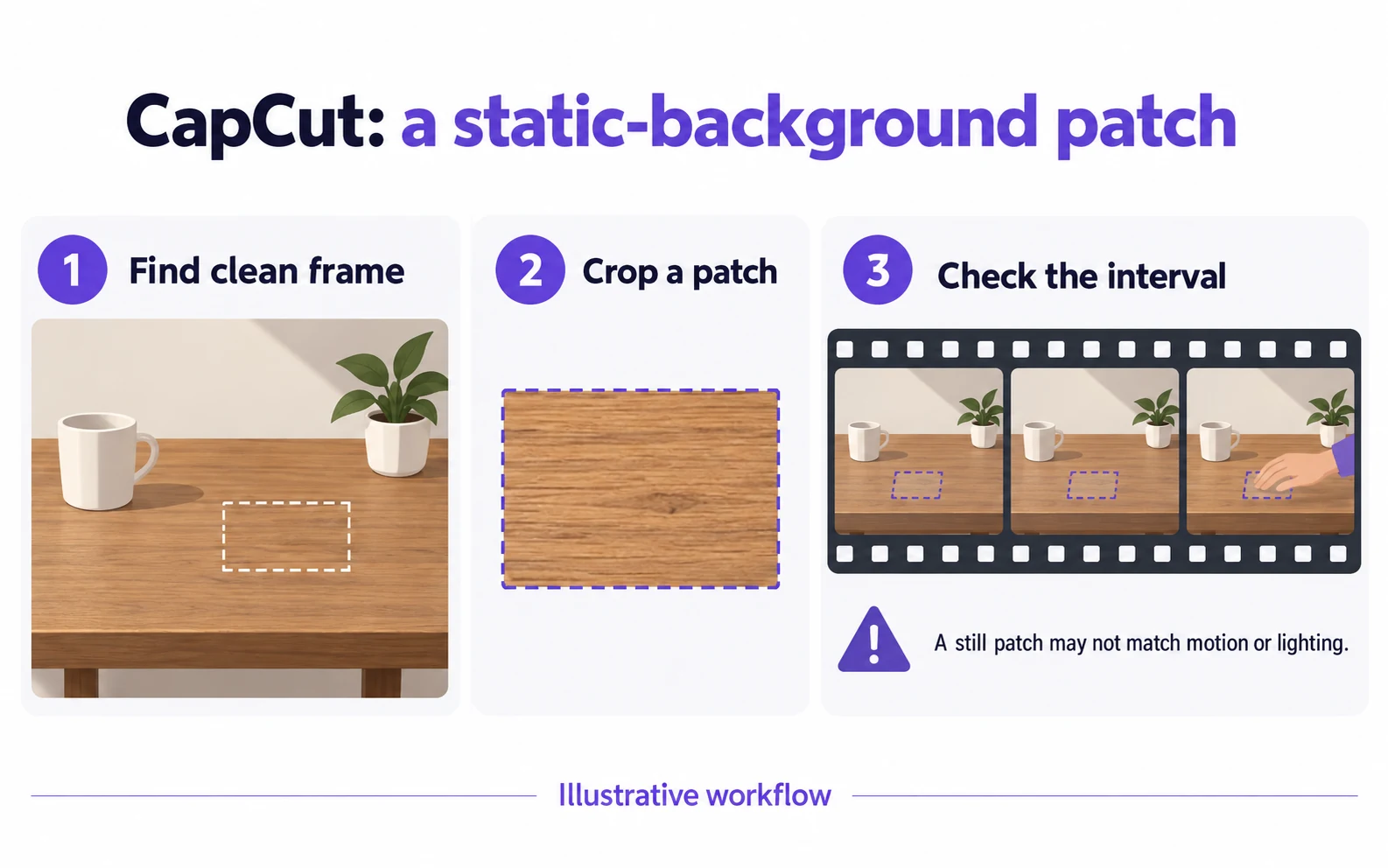
CapCut’s linked desktop guide describes using a clean freeze frame as a patch. This replaces the covered area with another piece of picture; it is not a recovery of the original hidden pixels.
Find a clean moment
Locate a frame where the required background is visible without the text. A fixed camera and a static surface are the easiest conditions for a patch.
Create and position the patch
Use Freeze, place the freeze frame above the footage, crop it to the clean area and position that region over the unwanted text.
Check alignment through the whole interval
Watch the patch while the footage moves. A still patch can become visible when lighting changes or a subject passes behind it.
Check: If the patch no longer matches, use a different method or a clean source instead of hiding the mismatch with a larger patch.
When the words cross moving detail
A subtitle crossing a hand, face or fabric changes its background from frame to frame. Compare the actual output before deciding that a patch or automatic repair fits the shot.
You can afford to lose an edge
Cropping can remove text at a border, but also discards the rest of that strip.
Compare the framing tradeoffYou need the full composition
Automatic repair can estimate the covered region in an exported local clip. Its controls differ from a timeline editor.
Compare repair and blurFix the common “text will not delete” cases
Check the selected object and the source before trying another effect.
Clicking selects the whole video
Likely cause: The words belong to the imported picture, not an editable text item.
What to do: Return to the original project if available. Otherwise choose an image edit for the flattened clip.
Only the first sentence disappeared
Likely cause: Captions can consist of many separate timeline segments.
What to do: Review the whole caption interval and select the remaining intended text items.
A replacement patch looks frozen
Likely cause: The underlying surface or camera moved while the patch stayed still.
What to do: Limit the patch to a genuinely static interval, or change methods when the background cannot be matched.
The exported copy still has captions
Likely cause: A second text layer, later segment or burned-in source may remain.
What to do: Inspect the source with editable caption items disabled, then check export settings and the full timeline.
Keep the next caption version editable
After cleanup, import the checked video into your editor and add replacement captions as separate objects.
Before handing off the new edit
- The intended captions are absent throughout the exported range.
- The underlying footage and audio were not accidentally removed.
- Any patch or repaired area is acceptable during movement.
- The project and original media are saved separately from the final video.
元の動画と処理結果
Compare the original and result as the video plays.
Questions and answers
Why can I not select the text in CapCut?
The words may be baked into the imported video instead of stored as a project text object. Check the original project or use an image-repair method.
Are automatic captions still editable after export?
They remain editable in the project, but the copy rendered into a flattened export is image content. Keep the project if you expect to change captions again.
Official references
Software diagrams are illustrations, not version-specific screenshots. Consult these guides for current controls.