
Remove text that is already part of a saved TikTok video. Choose the local file you are allowed to edit; pasting a TikTok link is not supported.
Work from a saved TikTok video and check that the unwanted words are in its picture. This tool does not import a TikTok link or change an existing post.
Try your own video
Choose a local clip, preview it and review the cost before processing.
Free trial & upload limits
メール認証後にお試し用の3クレジットを受け取れます。
無料アカウント:50MB・有料アカウント:100MB
1秒未満を切り上げて1秒あたり1クレジット・最低3クレジット
自動処理により、ほかの文字やロゴも変わる場合があります。 料金を見る
元の動画と処理結果
Compare the original and result as the video plays.
Start with the saved video
Check whether the words are visible when the file plays outside TikTok. Captions rendered by the platform and text burned into an exported clip are different things. This tool works on the uploaded file’s picture.
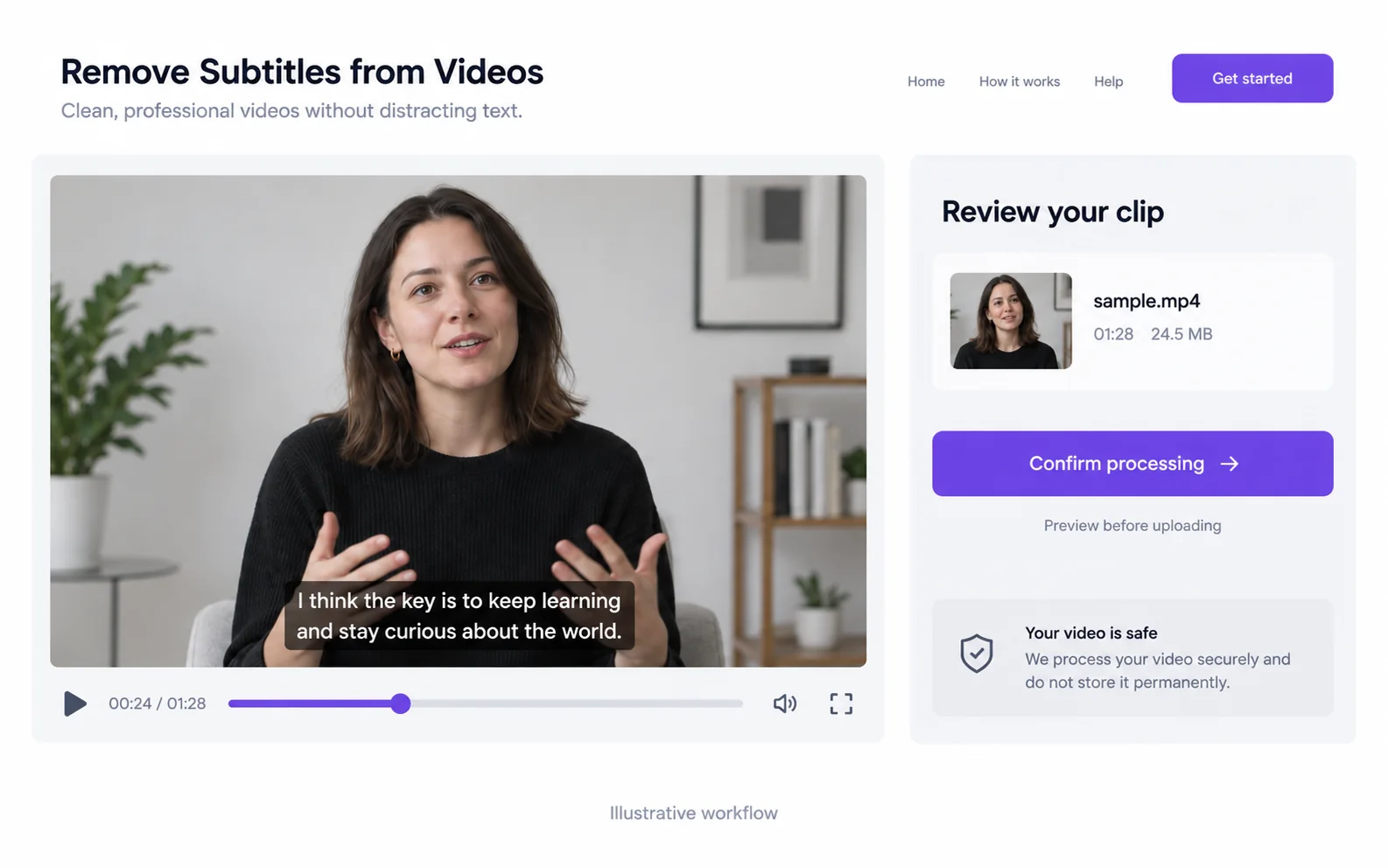
Prepare a captioned TikTok clip for another edit
Keep a distinct source and result so you can compare the exact clip used in your next edit.
Check the saved copy outside the platform
Play the local video in another player. Confirm the visible words are actually in those frames, rather than part of the app’s display.
Include a complete word change
Choose a scene that contains the old highlighted word, the next word and movement between them. A static title frame is not representative of fast captions.
Inspect background lettering as well
After repair, compare labels or signs you want to keep. This automatic workflow has no selected-text preservation control.
Add the next caption version in an editor
Save the result separately and add editable replacement captions before your next export.
Inspect changing highlighted words
A talking clip may switch highlighted words every few frames. Use the clean-background example to inspect transitions, then compare the busier talking-head example for background-label changes.
動画のテロップを消すProtect important background information
Automatic processing can affect packaging, signs or other visible text. There is no option here to keep selected words. If those details matter, compare them before deciding whether to use the result.
Re-edit the downloaded copy
After checking the result, add new captions or publish it through your normal editing workflow. Processing a local file does not edit the description or settings of an existing TikTok post.
CapCutで動画の文字を消す方法Resolve the remaining mismatch
Check which part of the workflow needs a different action.
ブランド名がキャプションとともに変更
Likely cause: Both were visible text in the uploaded picture.
What to do: Use a clean source or an editor with a protected region when that brand name must remain exact.
The output contains only the opening
Likely cause: The confirmed range may have covered only the beginning of the source.
What to do: Check the task duration. Trim the intended scene before selecting it for a new job and review the cost before confirming.
Questions and answers
Can I paste a TikTok link into this tool?
No. Choose a supported video saved on your device. The tool does not download a TikTok URL.
Does this change the caption on my TikTok post?
No. It changes the uploaded video picture, not your TikTok post description, comments or caption settings.
Can I add a different caption style afterward?
Yes. Import the checked result into your editor and add the new text there. Keep the new captions editable; the removal workflow does not create or translate them.