
Remove lettering inside a saved Facebook Reel, such as a speaker name bar. This task is separate from changing Facebook’s captions or the text below a post.
Check a saved Facebook video outside the app first. Only words visible in that local file can be changed here; post descriptions and playback captions use platform controls.
Find out where the words come from
Play the local file outside Facebook. If the lettering is absent there, it may belong to the platform’s display rather than the saved image. Use the relevant platform setting for that task.
동영상 자막 제거하는 방법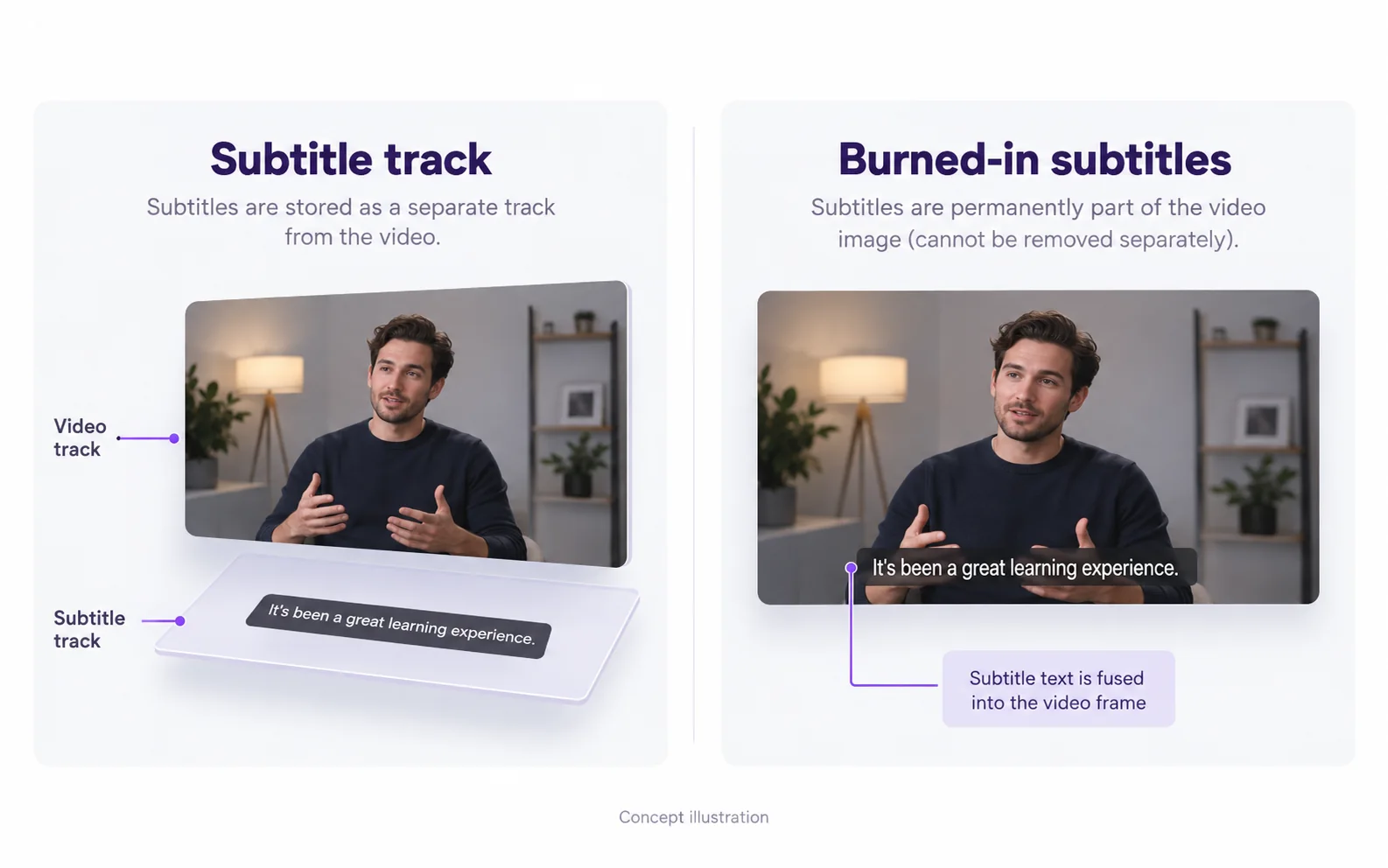
Follow the local-file route
Keep a distinct source and result so you can compare the exact clip used in your next edit.
Separate app display from saved footage
Open the saved file in a player and inspect the same moment. If the words are absent, changing that file will not change the app display.
Prepare the complete speaker-label interval
Include the name bar arriving, resting and leaving so the whole graphic can be checked.
Confirm and inspect a supported clip
Review the included duration, then check the downloaded result and any meaningful background labels before reuse.
Check speaker labels as a complete region
이름 표시줄은 텍스트, 배경 색상, 아이콘 및 그림자를 포함할 수 있습니다. 움직이는 옷 아래의 진입 애니메이션을 포함하여 표시줄의 전체 발자취와 진입 애니메이션을 검사하세요.
영상에 겹쳐진 글자 지우기Choose a saved clip and review its cost
The upload workflow needs a local supported file. There is no Facebook link importer. Confirm the included duration before starting; a short-prefix job does not include the entire original Reel.
Review other labels before reusing
If the footage contains a sign, product name or slide, compare that text too. Automatic removal does not offer a keep-this-label setting. Save the result separately from your original.
Resolve the remaining mismatch
Check which part of the workflow needs a different action.
The post text is unchanged after processing
Likely cause: A post description is stored outside the uploaded video file.
What to do: Edit that text in the platform’s publishing interface; use video repair only for text rendered into the footage.
The output contains only the opening
Likely cause: The confirmed range may have covered only the beginning of the source.
What to do: Check the task duration. Trim the intended scene before selecting it for a new job and review the cost before confirming.
원본 동영상과 처리 결과
Compare the original and result as the video plays.
Questions and answers
Does this change Facebook caption settings?
No. The tool changes the uploaded video image, not Facebook’s player settings or post text.
Can other visible labels change during automatic removal?
Yes. Automatic processing may affect labels elsewhere in the frame. Check important background text before using the result.
Can I add a different caption style afterward?
Yes. Import the checked result into your editor and add the new text there. Keep the new captions editable; the removal workflow does not create or translate them.