
자막은 내보낸 비디오 내의 편집 가능한 레이어, 또는 소셜 게시물의 아래 설명일 수 있습니다. 각각은 다른 워크플로우에 속합니다.
First locate the caption: inside an editing project, inside a video frame, or under a social post. Each lives in a different place and needs a different edit.
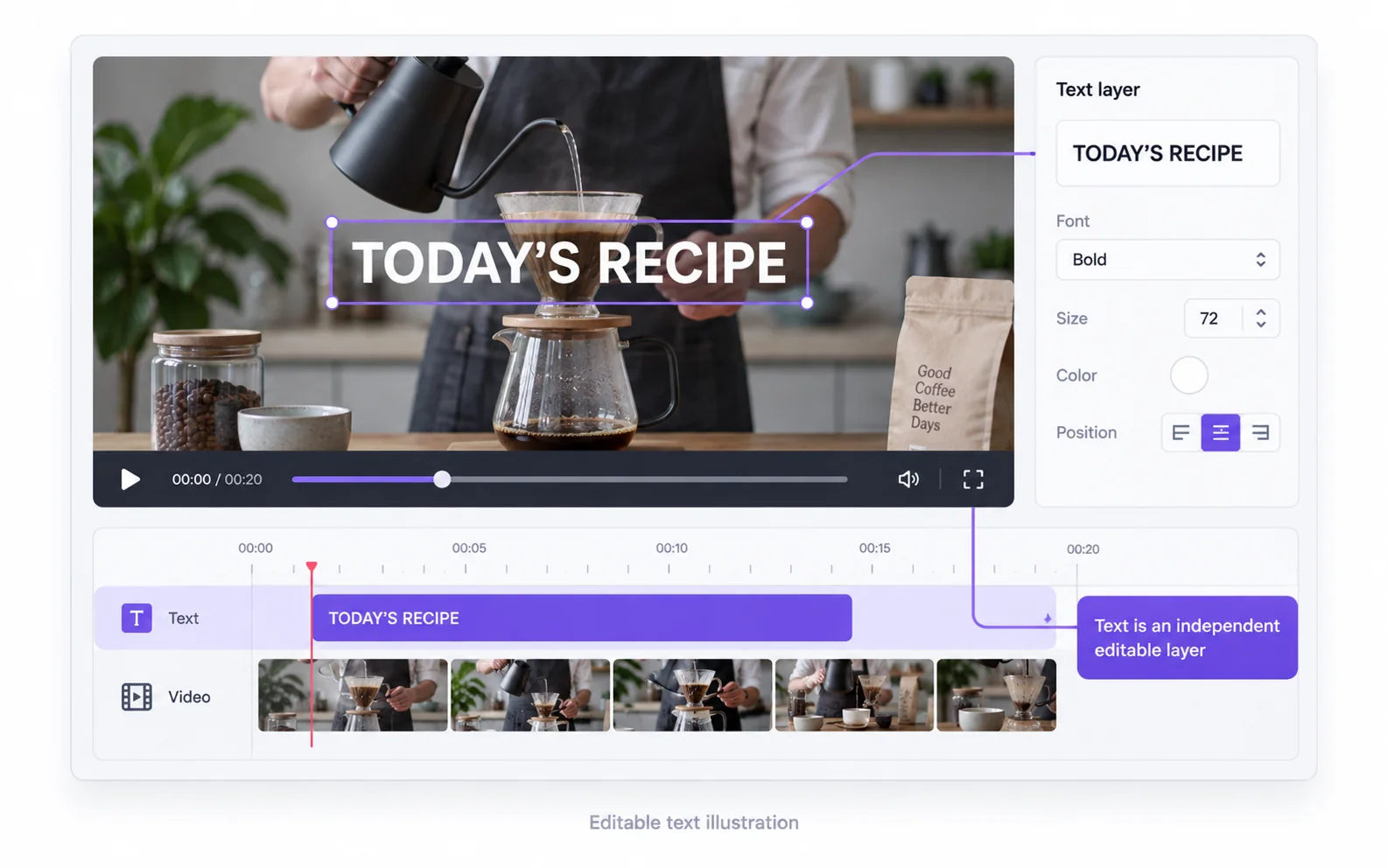
Captions inside your editing project
Select the caption or title layer and remove it, then export a new copy. Check for multiple caption clips across the timeline. Deleting one visible caption may leave later segments untouched.
Return to the original project
Open the project used to create the captioned export rather than importing that export as a new project.
Select a caption object
Confirm the selected item is text, not the underlying video or its audio. Remove the intended object and check the next caption segment.
Export a clean copy
Preview the complete sequence before export. Reopen the new video to confirm that no later subtitle segment was missed.
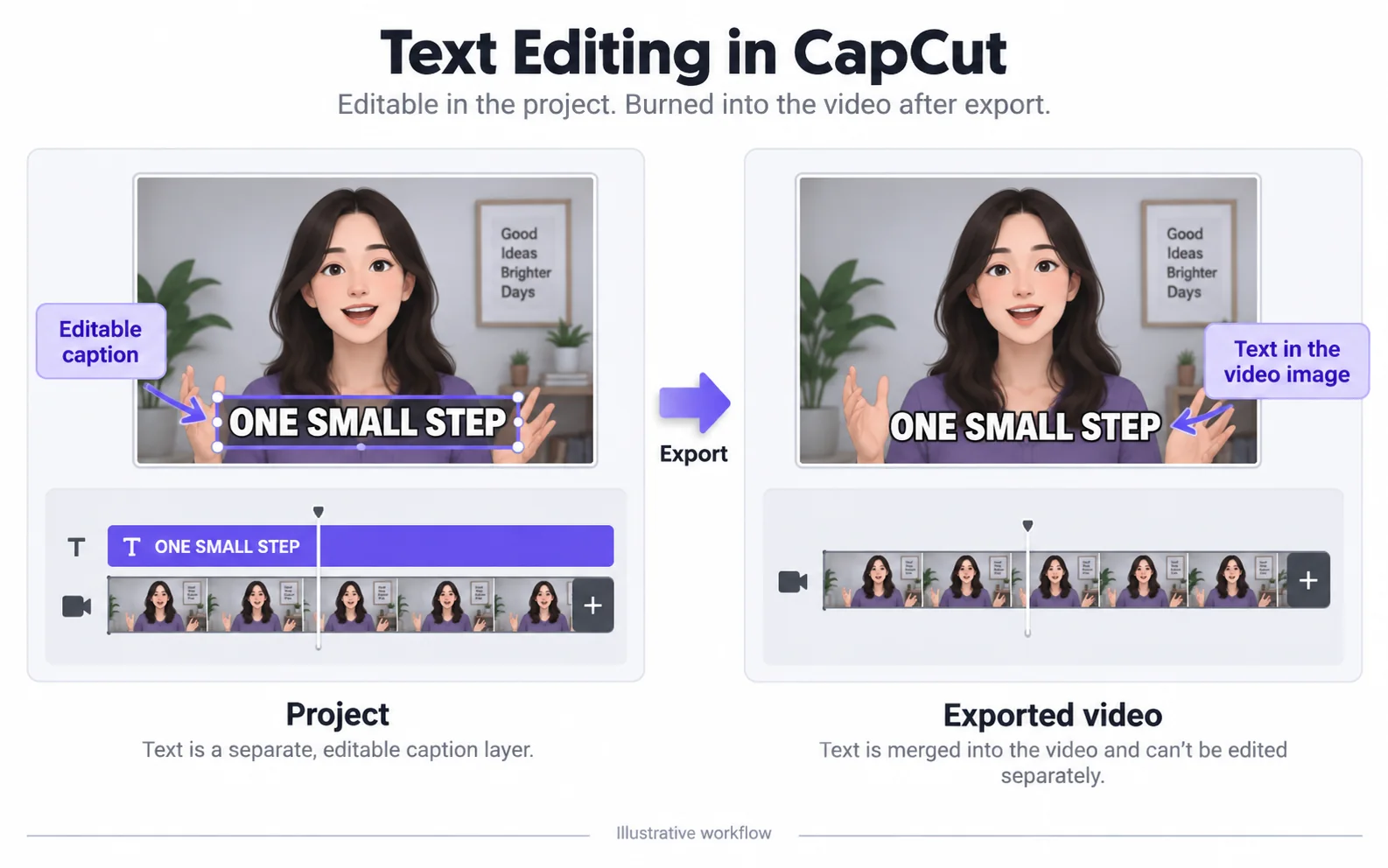
Captions burned into the exported video
Once text is flattened into the image, it cannot be selected as an independent caption object. Use picture repair, crop or another image-editing method depending on the amount of content you can afford to change.
| Method | Good fit | Tradeoff |
|---|---|---|
| Crop | Text lies at an edge you can discard. | Changes the framing. |
| Cover | 새로운 그래픽은 동일한 영역을 차지하도록 설계되었습니다. | The background remains hidden. |
| Automatic repair | You want to retain the frame and estimate the covered region. | Detail and other visible text may change. |
The caption under a social post
A post description belongs to the platform’s publishing interface. Uploading its video here cannot change the description, accessibility settings or comments associated with that post.
인스타 스토리 동영상 글씨 지우기Prepare the next caption version
Inspect the cleaned clip before adding replacement captions in an editor. The repair tool does not translate speech, transcribe audio or generate new subtitles.
Check before publishing a new caption version
정리된 클립은 다음 편집의 시작점이며, 대체 자막 파일이 아닙니다.
Deleting a caption also removed the scene
Likely cause: The video item was selected instead of the text object.
What to do: Undo, confirm the track or object type, and remove only the caption.
Old and new captions appear together
Likely cause: The old words were already rendered into the source video.
What to do: Inspect the source without your new caption layer. Repair or replace the source before adding the new wording.
The description beneath the post is unchanged
Likely cause: Post text is stored by the platform, outside the uploaded video.
What to do: Edit that description in the platform’s publishing interface.
원본 동영상과 처리 결과
Compare the original and result as the video plays.
Questions and answers
Can captions be removed after a video has been exported?
Burned-in captions can be processed as image content. For editable captions, use the original project and export again.
Are post captions the same as words inside a video?
No. Post captions are separate platform text. This tool only changes visible content in the uploaded video.