
다빈치 리졸브에서 영상 글씨 지우기
Based on linked official documentation · Updated · Editorial methodology
DaVinci Resolve can keep title editing and picture repair in separate workflows. For text in the footage, inspect repair across time, not just the frame used to set it up.
Documentation-based walkthrough · official references checked September 8, 2026 · controls vary by edition and device
Delete an editable title or subtitle directly. For text inside the footage, Blackmagic documents object removal in Resolve Studio using a tracked Power Window and the Object Removal effect.
Start with the timeline
If the words are a separate title or subtitle item, remove that item and preview the sequence. Avoid image repair when the original image is still available below an editable layer.
Check the edition before choosing an effect
Blackmagic’s documentation places object removal in DaVinci Resolve Studio and describes a workflow using Power Windows and tracking. Check the controls available in your installed edition before following an effect-based tutorial.
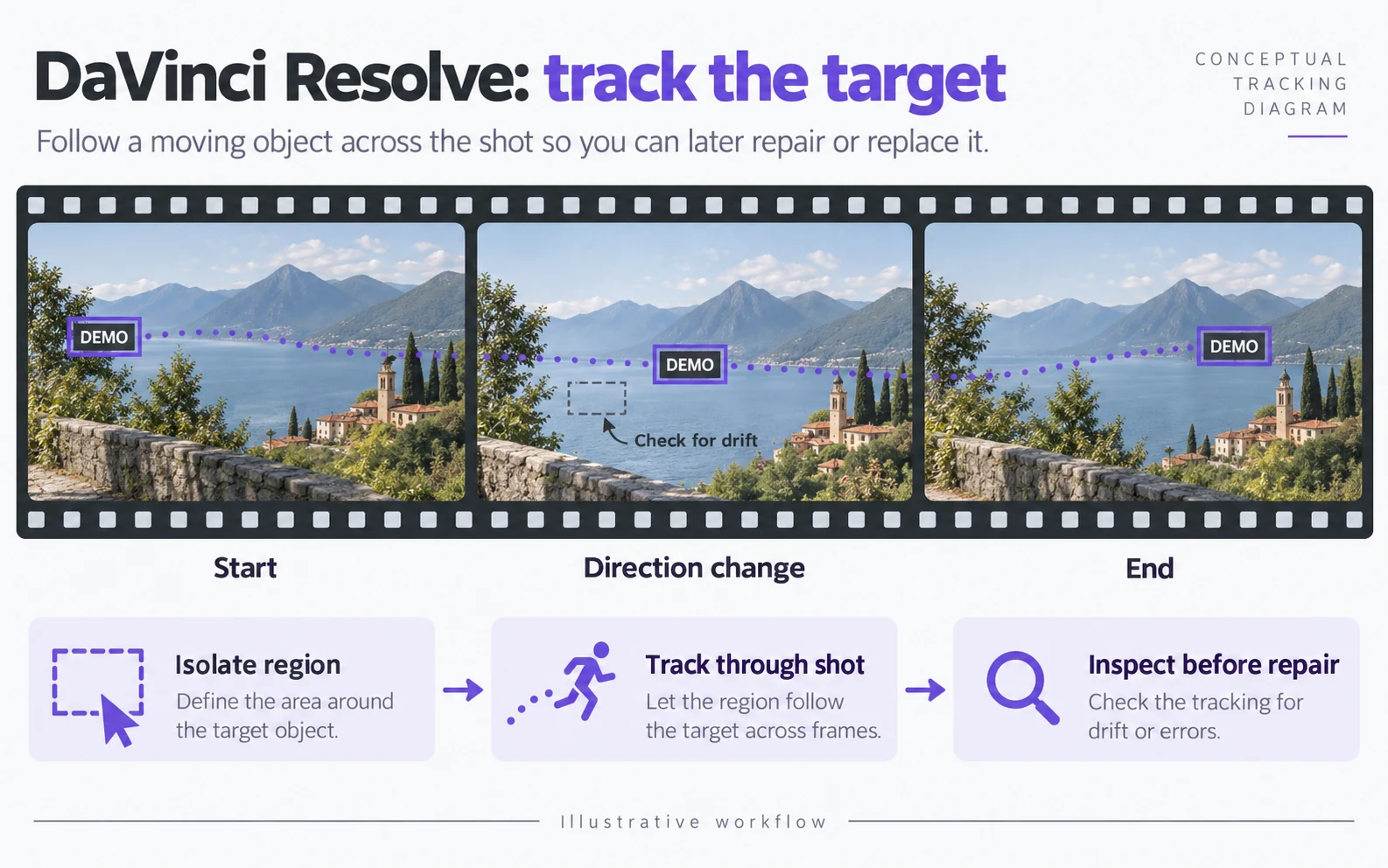
Isolate the unwanted area
In the Color workflow, draw a Power Window around the text region. Keep the selected area tied to the shot you intend to repair.
Track the window
Track the region through the shot and inspect where the camera or subject changes direction.
Check: The window follows the target rather than drifting onto nearby detail.
Connect the repair node
Add a new node and connect the tracked window’s alpha output to it. Apply the Object Removal effect in the documented Studio workflow.
Run Scene Analysis and inspect
Run the effect’s analysis, then compare the shot at normal speed and frame by frame near crossings or cuts.
Check: Edition availability and a successful analysis do not guarantee a usable repair.
Inspect the repaired region over time
For burned-in text, compare frames before, during and after a subject crosses the region. Look at repeated textures, facial boundaries and the edge of a lower third. A repair that fits one frame may not fit the whole shot.
블러 없이 영상 글씨 지우기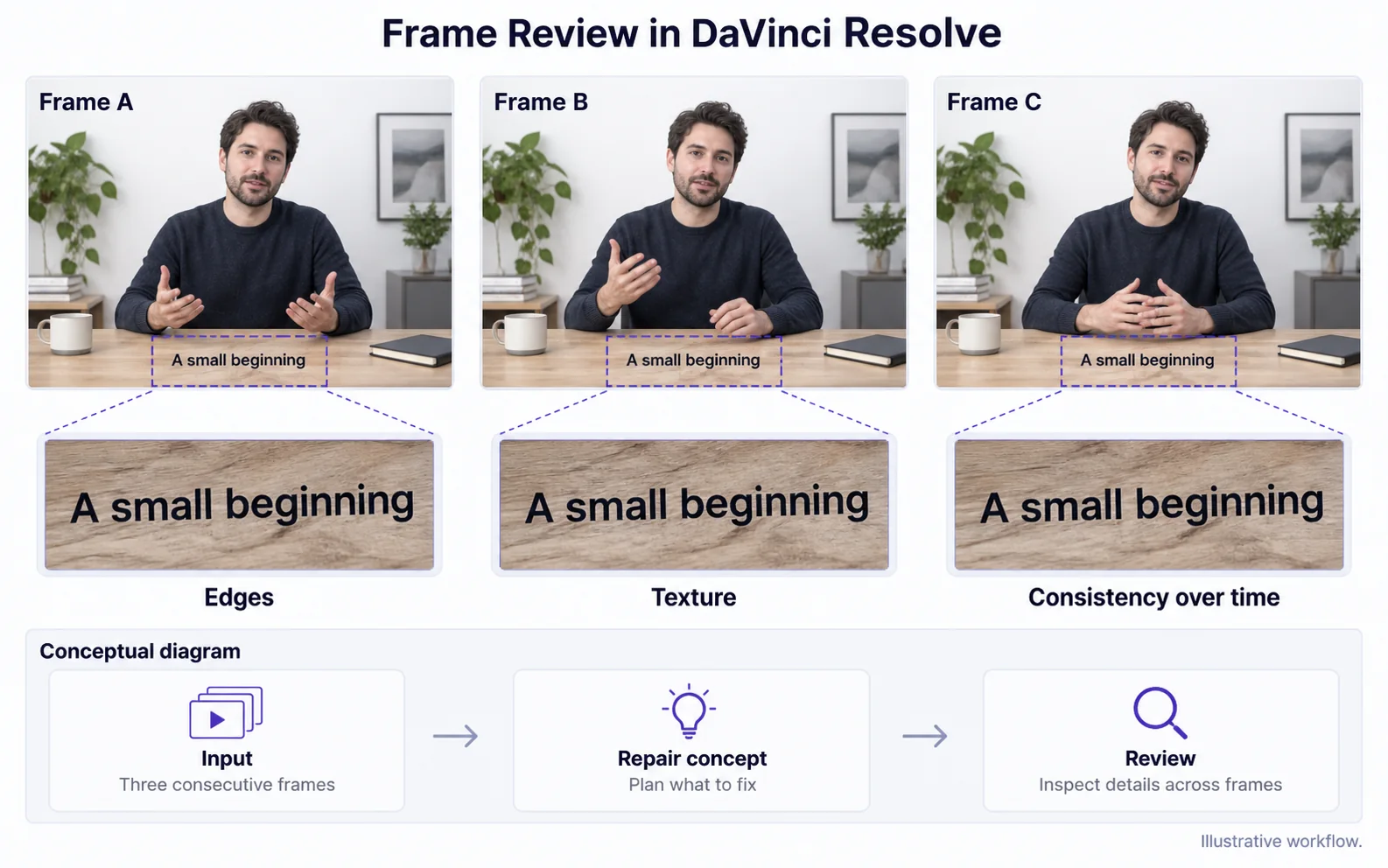
Choose a file-based alternative when useful
For an automatic browser workflow, export a supported clip, compare its result and bring the downloaded copy back into your edit. Keep your original timeline and source files for a controlled comparison.
동영상 글씨 지우는 방법Decide whether the shot needs more work
Test the difficult part of the shot instead of relying on a clean first frame.
The effect is unavailable
Likely cause: The installed edition may not include the documented Studio effect.
What to do: Check the edition and official documentation. Do not assume an identically named effect exists in every edition.
The repaired region drifts
Likely cause: The tracked window may no longer follow the text.
What to do: Inspect tracking around direction changes and shot cuts before evaluating the fill.
얼굴이나 반복적인 패턴이 잘못 보입니다.
Likely cause: The covered image may not have enough suitable replacement detail.
What to do: Use a different source or more controlled repair for that shot; inspect the result before final export.
원본 동영상과 처리 결과
Compare the original and result as the video plays.
Questions and answers
Does the workflow require Resolve Studio?
The object-removal workflow described by Blackmagic uses Resolve Studio. Editable title removal is a different task; check your installed edition for available controls.
Can I remove a subtitle track instead of repairing the picture?
Yes, if you can select the subtitles separately in your project. Delete those captions and save a new copy of the video.
Official references
Software diagrams are illustrations, not version-specific screenshots. Consult these guides for current controls.