
iMovie怎么去掉视频文字
Based on linked official documentation · Updated · Editorial methodology
An iMovie title can belong to a standard movie project or a Magic Movie workflow. Neither is the same as a timestamp already rendered into an imported video.
Apple iMovie for iPhone documentation · standard Movie and Magic Movie have different title controls
In a standard iMovie project on iPhone, select the clip, open Titles and choose None. For Magic Movie or storyboard projects, use their own clip-editing controls; these title settings do not erase words already in the source footage.
Identify the project type first
Open the original project and identify whether you are editing a standard movie, Magic Movie or storyboard. Apple documents title controls by project type, so avoid applying a standard timeline instruction to every workflow.
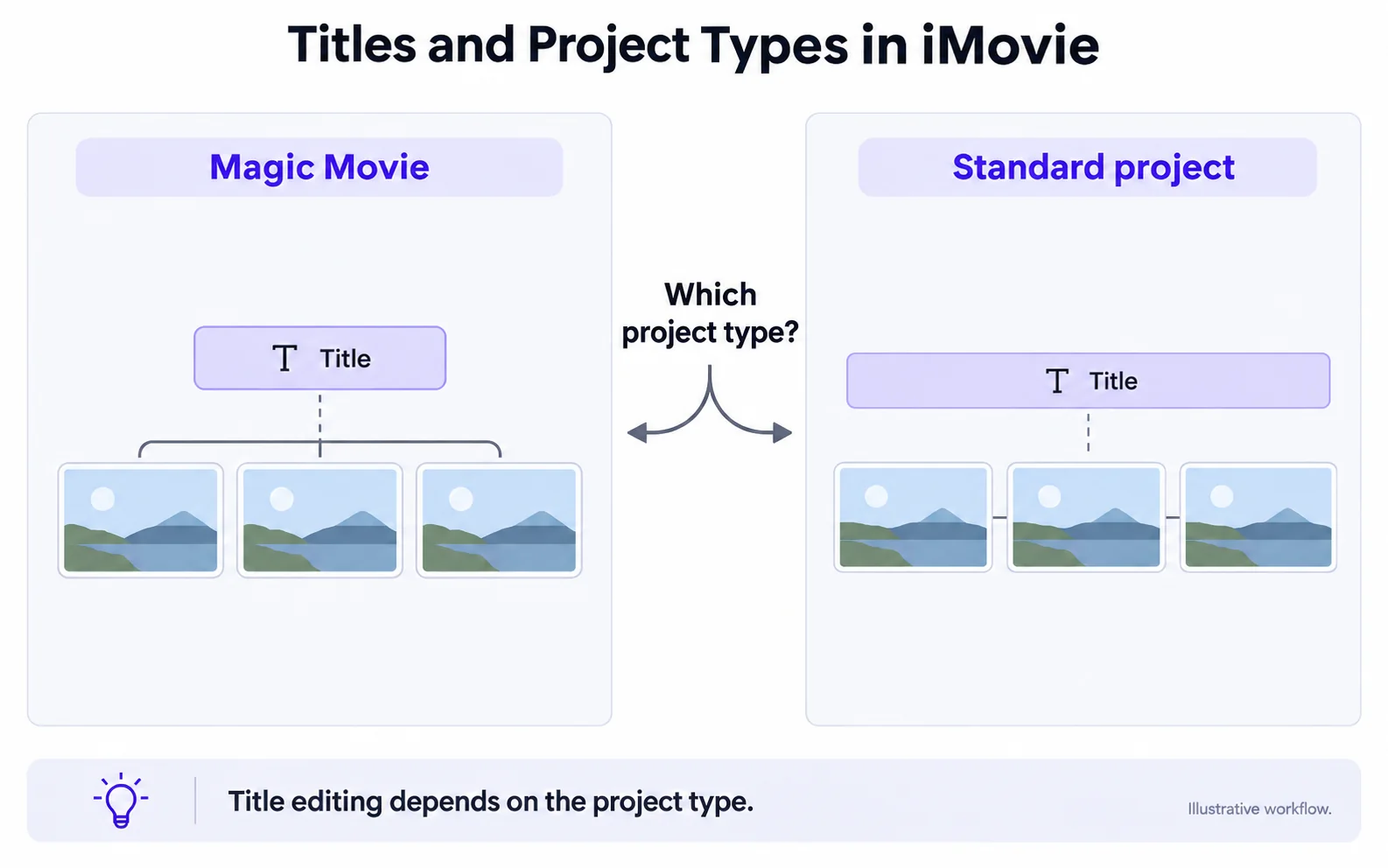
Remove a standard movie title on iPhone
In a standard movie project, tap the clip, open its title controls and select None to remove the applied title. Preview the affected clip and the rest of the movie before exporting a new copy.
Open the standard Movie project
Select the video clip or photo in the timeline to reveal its inspector.
Open Titles
Use the Titles control and choose None for the selected clip.
Check: A project-applied title disappears; text already in the source can remain.
Check every titled clip
Repeat for other clips whose titles should be removed. Preview the movie before exporting.
Share a new video file
Reopen the exported copy and inspect the clips you changed. Keep the editable project for future title versions.
Handle a Magic Movie title in its own controls
In the Magic Movie or storyboard project, select the clip and open its clip-editing view. Apple documents separate Titles and Text controls for layout and wording. If the chosen layout cannot omit the title you need to remove, create a standard Movie project from the original clips and leave its title style at None. Rebuild any timing or styling you still need; this is a new edit, not a way to erase words already in the footage.
If the text is in an exported clip
硬字幕或标题是视频图像的一部分。移除 iMovie 标题效果,会保留这些已存在的文本。如果实际任务是修复,请使用支持的导出文件的修复工作流程。
视频叠加文字去除Troubleshoot text that survives title changes
Look for a different title source before repeating the same control.
None removes the title but leaves a timestamp
Likely cause: The timestamp may already exist in the source footage.
What to do: Inspect the original clip and use a picture-editing method for its burned-in text.
The instructions do not match the screen
Likely cause: The project may be a Magic Movie or storyboard instead of a standard Movie.
What to do: Return to the project overview, identify its type and follow the corresponding Apple title controls.
Another location label remains
Likely cause: A theme may add location information separately.
What to do: Check the project’s theme and location title settings, then preview the new export.
原视频与处理结果
Compare the original and result as the video plays.
Questions and answers
How is a Magic Movie title different from text in an exported clip?
A project title is editable within its project workflow. Text rendered into an exported video is image content and no longer an independent iMovie title.
Can iMovie delete a timestamp that is already in the footage?
Removing an iMovie title does not erase a timestamp already present in the source frames. That requires a picture-editing method.
Official references
Software diagrams are illustrations, not version-specific screenshots. Consult these guides for current controls.