
Media.io去文字替代工具
Based on linked official documentation · Updated · Editorial methodology
Media.io 的替代方案应该与您想要识别文本的方式相匹配。当特定区域很重要时,请使用基于选择的工作流程。当您希望自动检测支持的本地视频中可见的文字,而无需创建遮罩或输入提示时,请使用我们的自动浏览器工具。
Published byRemoveSubs· 产品功能与相关官方文档进行了审核。2026-09-08· 建议基于工作流程,而非衡量质量或速度。
Choose by the control you need
Prefer Media.io’s documented modes when you want to mark a target or deliberately obscure it. Our workspace suits an automatic pass over visible video text. It does not offer a brush, prompt, protected area or blur mode.
Swipe the table to compare both workflows →
| Your requirement | Media.io | RemoveSubs |
|---|---|---|
| Mark an exact target | Basic Model uses a brush; AI Model accepts a description. Source ↗ | Automatic detection; no mask or text prompt. |
| Hide rather than reconstruct | Gaussian Blur obscures a selected box. Source ↗ | AI repair estimates the covered picture; no blur overlay option. |
| Choose an input | The official web guide lists MP4 and MOV, up to 15 minutes. Source ↗ | MP4, MOV and WebM; account file-size and credit limits apply. |
Match the mode to the visible overlay
Media.io’s current watermark-remover guide covers logos, text overlays and timestamps and documents three selection modes. For a timestamp in one corner, choosing a target gives you a way to describe the intended edit. For a strip of subtitles across a clip, automatic detection can reduce selection work. Having fewer controls is useful only when their absence fits the job.
Media.io official video watermark remover: modes and supported input ↗
视频叠加文字去除Separate the target area from the time range
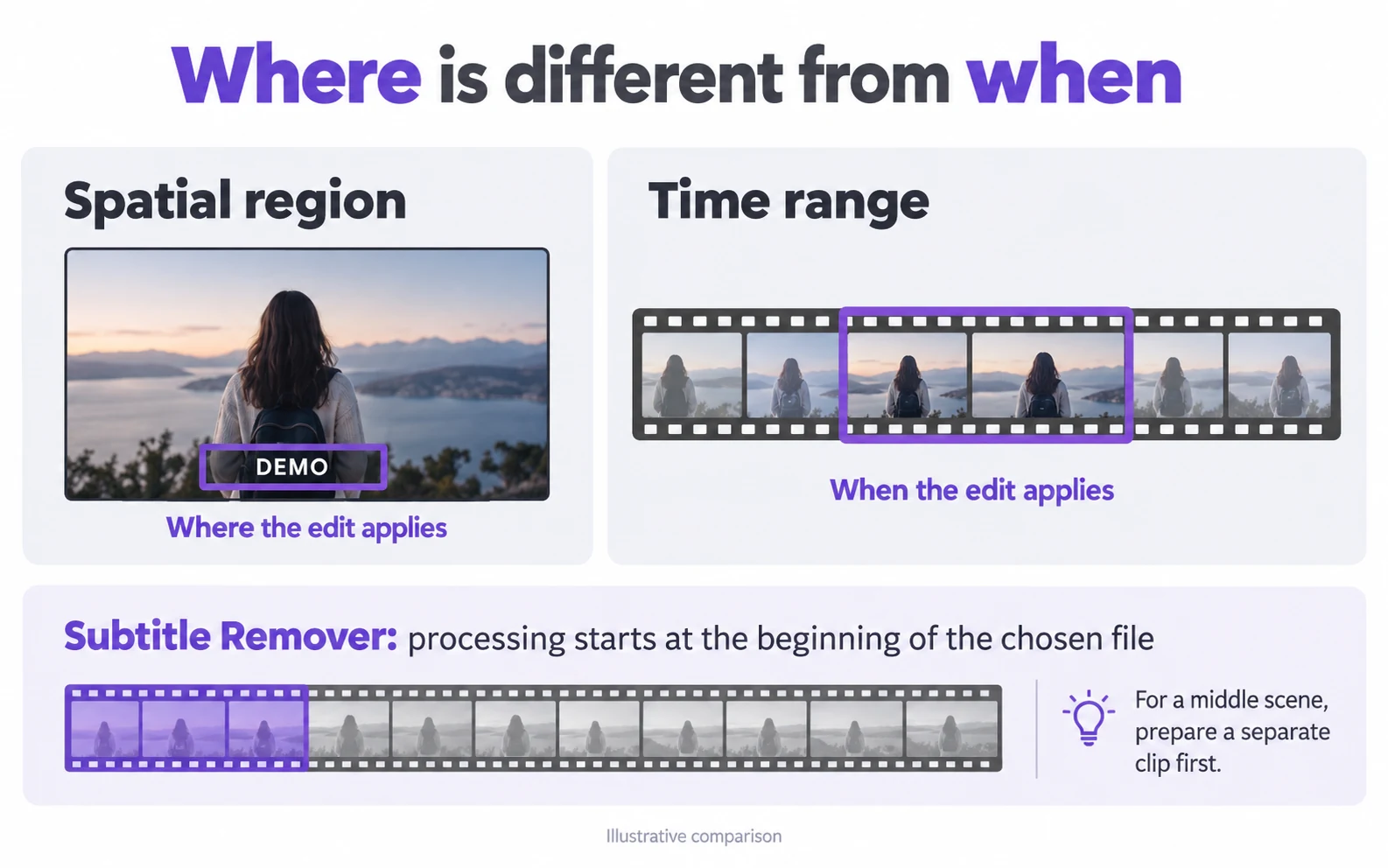
A region identifies where an edit applies; a time range identifies when it applies. Media.io’s Video Eraser documentation describes a brush-and-timeline workflow. Here, the supported processing range starts at the beginning of the chosen file. To work on a scene in the middle, trim it into a new clip first. Our workspace shows the covered duration before you commit.
Media.io Video Eraser: brush and timeline workflow ↗
Choose repair only when you need the picture underneath
故意模糊或遮盖是一种可见的编辑决策。修复尝试用估计的背景替换文字,这可能会改变细微的细节。对于包含演示屏幕、产品标签或文字后面的面部,请保留一个原始副本,并在输出中检查这些特征。当可用时,请使用原始干净导出。
视频去文字不模糊Use our automatic alternative from preview to download
Choose a local file below, review its preview and confirm the included duration and cost. After processing, play the output at normal speed, then pause near letter edges and moving subjects. Check important text elsewhere in the picture too: this tool has no keep-selected-text option. Download the accepted output and return to your editor if you need new captions or additional cuts.
Questions and answers
Can I tell this tool which sentence to remove?
No. It detects visible text automatically. Use a selection-based editor when the job requires removing one sentence while keeping nearby lettering.
Does Media.io Gaussian Blur restore the covered background?
No. Its official guide describes an obscured area. Reconstructing a background is a different result from hiding a mark with blur.
Does this page compare the two services’ prices or speed?
No. It compares documented controls with this site’s available workflow. Our current cost appears before processing; no matched speed, price or output-quality benchmark is presented.
Official references
Official product references reviewed 2026-09-08. Images are conceptual illustrations. Consult the linked product for current availability and plan conditions.