
In Premiere Pro, identify whether the words come from captions, graphics or the source footage. Remove editable text at its source before considering image repair.
Documentation-based walkthrough · official references checked September 8, 2026 · controls vary by edition and device
In Premiere, a caption segment, a graphics text layer and a timestamp inside source footage are different objects. Identify which one produces the words before deleting anything.
Identify the text source in the sequence
Use the current frame to locate the item responsible for the text.
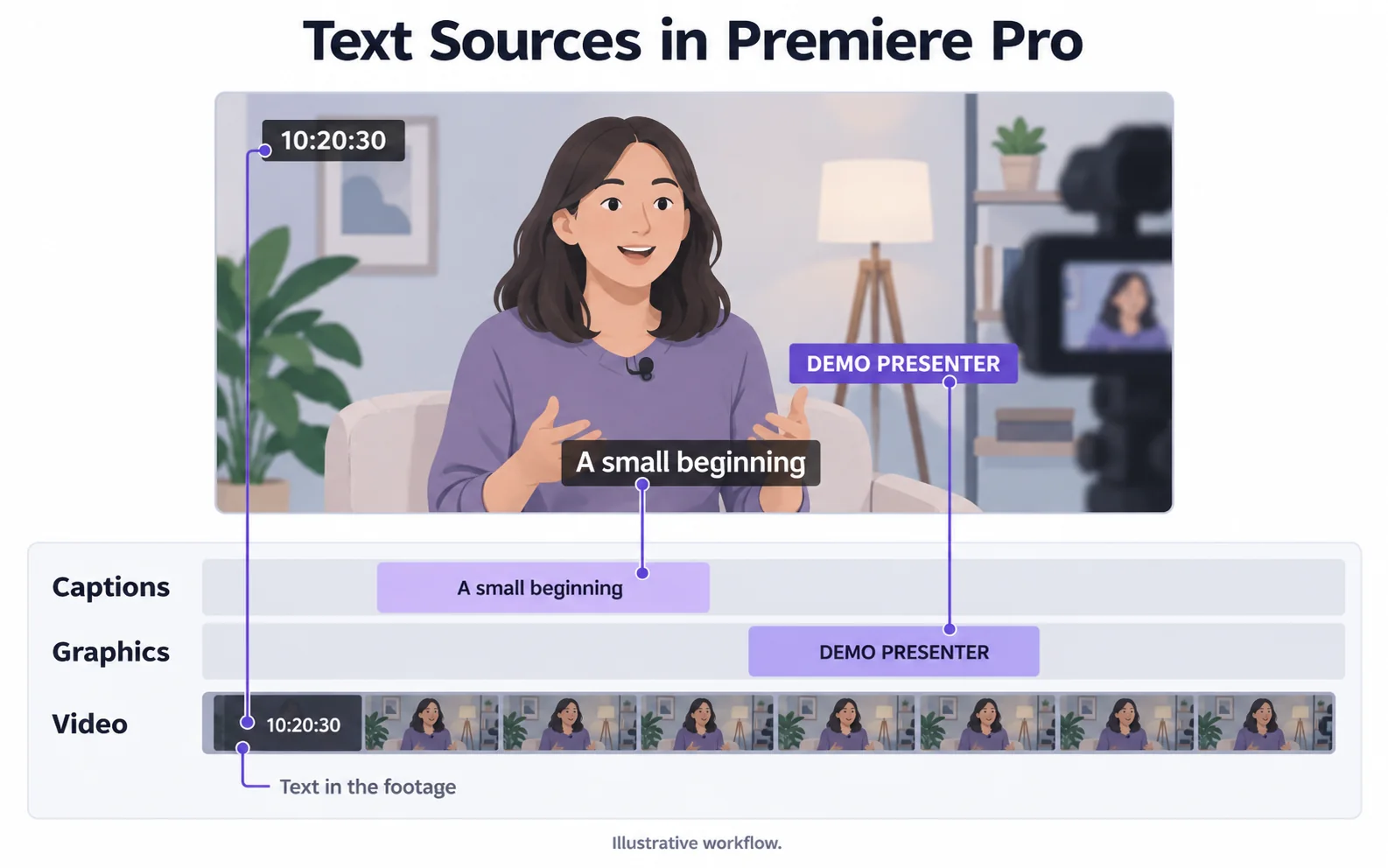
| Source | Quick test | Editing route |
|---|---|---|
| Caption track | Toggle the relevant caption track display. | Remove intended caption segments; review export inclusion. |
| Graphic or title | Disable the relevant graphic item. | Edit or remove the text graphic while keeping the video. |
| Source footage | Words remain when caption and graphic items are disabled. | Use a clean source or an image-repair workflow. |
Locate the source of the text
Inspect the timeline for a caption segment or graphic covering the current frame. Temporarily disable the relevant item to confirm its role. Do not delete the underlying video clip to remove a separate caption.
Remove editable captions or graphics
Delete the captions or text you do not want, then watch the full edit. Before saving, check that the export settings will not add those captions again.
Select the relevant caption segments
Work in the sequence timeline. Confirm that the selection contains captions or graphics, not the underlying video/audio.
Delete and preview
Remove the intended items, then inspect the sequence beyond the current playhead position. Check for a second caption or graphics track.
Review export caption handling
Before saving, check the caption export settings. Leave unwanted captions out of both the video and any separate subtitle file. The available choices depend on the format you select.
Verify the saved output
Reopen the exported file with caption display both enabled and disabled. Check a few originally captioned moments.
Handle a timestamp in the source footage
If the words remain when caption and graphic items are disabled, they may be part of the imported picture. Exporting without captions will not erase that timestamp. Use a dedicated repair workflow for that image-level change.
视频叠加文字去除Check the exported sequence
Reopen the file in a player and inspect scene cuts, lower-third entrances and any other title tracks. Keep your Premiere project and source media so later edits do not require reconstructing covered pixels.
If the export does not match the sequence
Separate a display setting from a file change.
Captions disappear in the monitor but return in the export
Likely cause: The caption data may still be selected for export.
What to do: Check the caption export settings, save another copy and open that copy to see whether the captions are gone.
A timestamp survives every caption edit
Likely cause: The timestamp may be rendered in the source footage.
What to do: Check the source clip independently. Use a clean original or a picture-editing method.
Removing text creates a gap in the edit
Likely cause: A video or graphics clip containing other needed content was removed.
What to do: Undo and inspect the specific text object before deleting it.
原视频与处理结果
Compare the original and result as the video plays.
Questions and answers
Can I delete a caption track without changing the picture?
Deleting an editable caption can reveal the original picture underneath. Check the export settings so unwanted captions are not added again when you save.
What if the timestamp is already in the footage?
Treat it as image content. Removing caption tracks cannot erase a timestamp rendered into the source footage.
Official references
Software diagrams are illustrations, not version-specific screenshots. Consult these guides for current controls.